Key Takeaways
A memorial video works best when the memories lead and the technology stays in the background.
- Start with the person, audience, and feeling you want to leave behind.
- Choose music that fits the relationship, occasion, and rights you have to use it.
- Match the video tool to your audio, photos, preferred style, and export needs.
- Review every generated detail with care, especially faces, captions, names, and dates.
- Keep a high-quality master and share the tribute only with the people you trust.
1. Plan the tribute before opening an AI tool
A meaningful tribute starts before you upload a single file. You need a clear sense of who the video honors, why you are making it, and how people will experience it. That direction keeps the result from becoming a random sequence of attractive images.
Take a little time to talk with family or close friends if you can. Their memories may point you toward a song, photograph, phrase, or small detail that says more about the person than a long biography.
Define the person, occasion, and emotional purpose
Name the person and the occasion in your working notes, even if those details never appear on screen. A funeral service, anniversary, celebration of life, birthday remembrance, and private family gathering may all call for different pacing and language.
Then write one sentence about the feeling you want the video to leave behind. It might be peaceful, grateful, warm, quietly joyful, or reflective. That sentence becomes a useful test whenever a creative choice feels uncertain.
Choose the story you want the video to tell
A tribute does not need to cover every year of a person’s life. Choose a simple story, such as a life shaped by family, a love of the outdoors, a generous friendship, or the everyday routines people miss most.
You can tell that story chronologically, but you do not have to. A song often works better when the images follow emotional movement rather than a strict timeline. A practical music video planning guide can help you think through the song’s narrative before you select scenes.
Gather photos, videos, dates, quotes, and meaningful details
Create one folder for the material you may use, then make a second folder for files that are private or uncertain. Check that faces are visible, photographs are large enough for the final screen, and video clips do not contain conversations or bystanders who should not appear.
Write down names, places, dates, nicknames, favorite activities, and short quotations. Keep the original files untouched. If you need to crop or adjust anything, work from copies so the family archive stays intact.
Decide who will watch and where the video will be shown
The viewing setting affects nearly every choice. A service may need a calm horizontal video with readable captions, while a private phone share can be shorter and more personal. Decide whether the audience includes children, distant relatives, coworkers, or only the immediate family.
You should also decide whether the video is a keepsake, a ceremony piece, or a public post. That decision sets a boundary around private stories and helps you avoid adding details that may feel appropriate at home but uncomfortable in public.
2. Create or choose the memorial song
Music gives the images their pace and emotional shape. You can begin with a recording the person loved, a new song written for the tribute, or a simple instrumental piece that leaves room for photographs and spoken words.
Listen to the full track before pairing it with visuals. A song may sound suitable in a short clip but contain lyrics, changes in energy, or a length that does not fit the gathering.
Decide between an original AI-generated song and an existing recording
An original song lets you set the genre, mood, tempo, lyrics, and instrumentation around the person’s story. An existing recording may feel more authentic when it was a favorite, connected to a shared memory, or already familiar to the people watching.
Choose based on emotional fit, not novelty. If you generate a new track, treat it as a creative draft and listen for whether the vocal style and words feel appropriate for the person being remembered.
Write a prompt based on memories, genre, mood, and instrumentation
Give the music system useful direction without turning the prompt into a biography. Mention the emotional purpose, a broad genre, the pace, the instruments, and a few memories that can guide the lyrics.
For example, you might ask for a gentle folk song with piano, brushed drums, and warm vocals about Sunday breakfasts, lake walks, and a family that stays close. A guide to AI song-to-video creation can give you a clearer sense of how a song idea later connects with visual sections.
Add personal lyrics without exposing private or identifying information
Use details that carry emotional meaning without publishing addresses, medical information, passwords, or private family conflict. A first name, broad location, favorite pastime, or familiar saying may be enough to make the song feel personal.
Read the lyrics as if they will be heard by someone who knew the person well. Remove invented claims and lines that sound too grand. Specific memories matter most when they remain accurate and kind.
Review the song for tone, accuracy, and emotional appropriateness
Listen for words that misstate the person’s life or turn grief into a generic slogan. Check whether the vocal performance feels too dramatic, cheerful, polished, or artificial for the setting.
Ask another trusted person to listen without seeing your notes. Their reaction can reveal a line that feels uncomfortable, a repeated phrase that distracts from the memory, or a musical change that arrives at the wrong moment.
Check copyright and permission requirements for existing music
An existing recording may have copyright restrictions even when the video is only for a family gathering. Public uploads, ceremony playback, and private sharing can involve different permissions, so check the rights attached to the song and recording.
If you did not create the music, keep a record of where it came from and what permission you received. Do not assume that owning a CD, download, or streaming subscription gives you permission to publish a video using that recording.
3. Select a tool for an AI music video for a memorial or tribute song
The right tool depends on what you already have and what you want the finished video to contain. Some workflows begin with a song and generate synchronized visuals, while others begin with text and produce both the track and the video.
For a memorial, also consider control and restraint. A tool that produces many dramatic effects may be less useful than one that gives you a steady visual style and a straightforward way to review the result.
Match the tool to your starting material
If you have an MP3 or WAV file, look for audio-to-video support. If you only have a song idea, look for text-to-song generation with singing vocals. If photographs are central, confirm how you can bring them into the visual workflow and whether the output can keep them recognizable.
Make a short list of must-have features before you compare tools. The free AI music video guide is a useful reference for thinking through prompts, audio uploads, visual styles, synchronization, and exports.
Use Creatus for a text-to-song and audio-to-video workflow
Creatus combines text-to-song generation with AI singing vocals and audio-to-music-video production in one workflow. You can enter a song idea or lyrics to generate a full song, or upload an MP3 or WAV file for video generation.
The documented workflow is direct: write the idea, generate or upload the audio, select a visual style, and generate the video. You can read more about CREATUS.AI before deciding whether that two-part workflow fits your tribute.
Compare photo-based, lyric-focused, and audio-reactive options
A photo-led video keeps real memories at the center. A lyric-focused video gives the words more room, while an audio-reactive treatment responds to tempo, energy, or musical changes with motion and abstract visuals.
For a memorial, you may combine these approaches carefully. Use photographs for the important verses, restrained motion during instrumental passages, and captions only when they add context rather than covering the image.
Check upload formats, export settings, watermarks, and pricing
Confirm the accepted audio formats before you prepare files. Also check the available aspect ratios, maximum duration, export quality, watermark rules, revision limits, and the cost of making another version.
Write these details into your project notes so you do not make decisions from memory. A tool may support the format you need but still produce a file that is difficult to play on the venue’s equipment.
Confirm how the platform handles uploaded photos, audio, and personal data
Read the platform’s privacy and terms pages before uploading family material. Look for information about retention, training use, deletion, sharing, account access, and whether your files can appear in a public feed.
If you want a plain example of the questions a privacy document may answer, review Swappahome as a reference for topics such as collection, processing, sharing, retention, and user rights. The policies for your chosen tool still control your project, so read those documents directly.
4. Build the video from the song and visual material
Once the song and source material are ready, build a first version without trying to perfect every transition. The first render shows you whether the audio length, image order, visual treatment, and captions work together.
Keep the visual plan modest. A few strong photographs, repeated visual motifs, and gentle movement often feel more personal than a busy sequence of generated scenes.
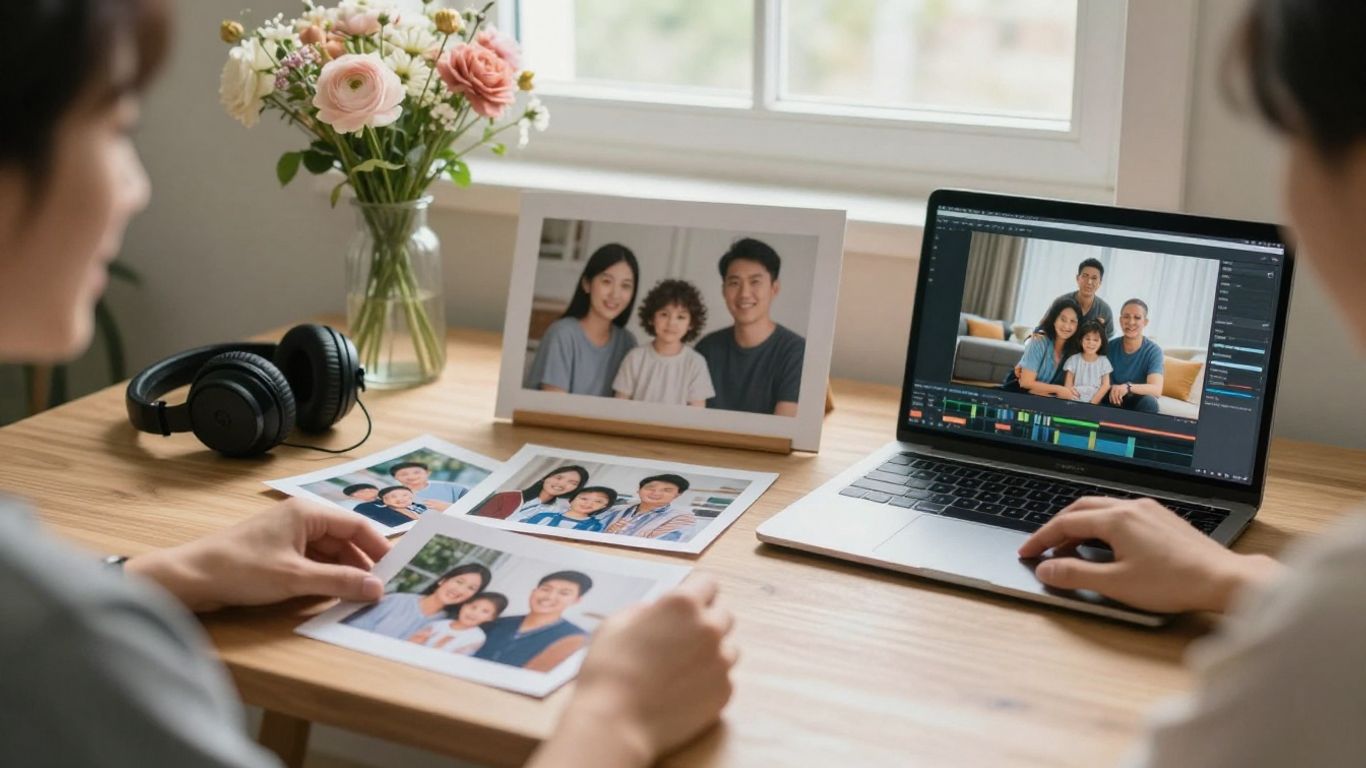
Upload the audio or generate the song inside Creatus
With Creatus, you can generate a song from a text idea with AI singing vocals, or use an existing MP3 or WAV file for the music-video step. Select the path that matches the work you have already done rather than generating a new song simply because the option is available.
After the audio is ready, select a visual style and generate an initial video. The platform documents styles including cinematic, animated, abstract, lyric video, and performance, so choose the one that supports the memorial rather than the one with the most motion.
Choose visuals that support the memories rather than compete with them
Start with photographs that show relationships, places, gestures, and ordinary moments. A quiet image of a kitchen, garden, workbench, or favorite chair may carry more feeling than a generic sunset.
Avoid filling every second with a new image. Let a meaningful photograph stay on screen long enough for people to recognize the setting and remember what happened there.
Organize images around the song’s sections and emotional changes
Mark the introduction, verses, chorus, bridge, and ending on a simple timeline. Place the images that explain the story in the verses, then reserve a small group of especially meaningful photographs for the emotional peak.
Do not force a cut on every beat. The music should guide the pace, but a tribute can breathe. If the song changes mood, change the image group or color treatment gradually instead of adding an abrupt effect.
Select a visual style that fits the person and the occasion
Cinematic visuals may suit a private keepsake, while a restrained lyric treatment may work better when many people need to follow the words. Animated or abstract elements can support a video when you have few photographs, but they should not pretend to be real memories.
Try to keep the style consistent from beginning to end. A gentle palette, slow movement, and limited transitions usually fit a remembrance better than rapid cuts and theatrical effects.
Generate an initial version and identify sections that need revision
Watch the draft from beginning to end before fixing individual moments. Note where an image appears too briefly, a caption covers a face, the song repeats a memory too often, or the visual mood shifts without a reason.
A focused revision list is easier to manage than vague dissatisfaction. Keep the changes that improve clarity or respect, and remove changes that exist only to make the video busier.
A step-by-step song video workflow can help you compare the draft against the basic sequence of audio preparation, visual selection, synchronization, and export. Use it as a process check, not as a reason to add effects the tribute does not need.
5. Make the tribute personal and respectful
Personal details give the video its reason to exist, but they also create responsibilities. You are working with someone’s likeness, family history, and private memories, often during a difficult period.
Let accuracy and consent set the limits. A polished video is not successful if it makes relatives uncomfortable or puts sensitive material in front of the wrong audience.
Use names, places, dates, and captions carefully
Check every spelling, relationship, date, and place name against a reliable source. Use captions to identify a moment or add a short phrase, not to explain every feeling the audience should have.
Keep captions on screen long enough to read on the actual display. If you use a nickname, confirm that the family is comfortable with it and that it fits the audience for the video.
Balance joyful memories with the tone of the ceremony or gathering
Joy has a place in remembrance, but its volume and timing matter. A funny clip may be perfect for a private family evening and less suitable during a formal service.
Ask what the room will feel like when the video plays. You can keep warm memories without turning the tribute into a highlight reel or making grief look like a performance.
Avoid invented scenes, misleading imagery, and inappropriate effects
Do not present AI-generated locations, events, or interactions as if they really happened. Label or explain creative additions when viewers could mistake them for documentary material.
Avoid effects that distort faces, add spectacle to serious moments, or turn a loved one into a fictional character without permission. For broader context on likeness and consent, the discussion of AI-generated celebrities offers useful questions about identity, intellectual property, and digital replicas.
Handle AI-generated faces and voice likenesses with family consent
A generated face or voice that resembles someone can feel intimate, even when it is technically fictional. Get clear agreement from the people most closely connected to the person before using likeness-based material.
Be especially cautious with simulated speech. A voice that appears to say new words can be upsetting or misleading, so keep the use private and transparent unless everyone affected agrees otherwise.
Ask someone close to the family to review the draft
Choose a reviewer who knows the person and can speak honestly. Ask them to check not only factual errors but also whether the pacing, song, humor, and visual choices feel like an honest remembrance.
Give them a specific list of questions so the review stays practical. You can ask which image feels most meaningful, which moment feels out of place, and whether anything should remain private.
6. Prepare the video for its viewing format
The same tribute may need different exports for a ceremony, a family group chat, and a social feed. Decide where each copy will play before you set the frame shape, text placement, and audio level.
Keep a clean master in the highest practical quality, then make smaller copies for sharing. The format should serve the viewing situation rather than dictate the emotional design.
Choose 16:9 for ceremonies, memorial services, and YouTube
A 16:9 horizontal file usually fits venue screens, televisions, laptops, and standard YouTube playback. It also gives landscape photographs room to breathe and leaves space for readable captions.
Check the venue’s playback requirements before export. Ask whether the screen is widescreen, which file types it accepts, and whether the audio will come from a laptop, a media player, or the venue’s sound system.
Use 9:16 for private sharing through Reels, Shorts, or TikTok
Vertical video suits phone-first viewing and the short-form feeds used by Reels, Shorts, and TikTok. Reframe photographs carefully so faces and important details do not disappear at the edges.
A private link may be more appropriate than a public post when the material includes family stories. If you do share vertically, watch the entire file on a phone before sending it.
Use 1:1 for social feeds and square displays
Square video can work well in social feeds and on displays designed for that shape. It gives you a balanced frame for portraits, close-ups, and simple caption placement.
Do not crop a single master repeatedly and assume each version works. Review the square composition separately, especially when a group photograph or landscape carries the meaning of a scene.
Check image quality, text size, audio levels, and transitions
Technical checks are easier when you use a small table before the final export. It turns a general feeling that something is wrong into a short set of fixes.
| Check | What to look for | Practical fix |
|---|---|---|
| Images | Faces and important details remain clear | Replace small files or shorten crops |
| Captions | Names and dates are readable | Increase size, contrast, or screen time |
| Audio | Vocals and spoken words are audible | Lower music under speech and test speakers |
| Transitions | Changes feel calm and intentional | Remove flashes, jumps, or distracting motion |
After the check, make one change at a time and watch the affected section again. The AI music video export guide can also help you think through synchronization, resolution, aspect ratios, and multi-platform delivery.
Export a high-quality master and a smaller sharing copy
Export one master without unnecessary compression and keep the project’s original audio separate. Then make a smaller copy for email, private messaging, or a family cloud folder.
Name files clearly with the person, occasion, version, and date. That small habit prevents you from sending an unfinished draft when several exports look similar.
7. Review, share, and preserve the finished tribute
The final review is more than a technical formality. It is your last chance to correct a name, remove a private image, soften a transition, or notice that the ending arrives too suddenly.
Watch the video with the intended audience and setting in mind. A file that feels intimate on headphones may feel too quiet in a hall, while a caption that looks fine on a monitor may be unreadable from the back row.
Proofread every caption, lyric, name, and date
Read the text from the exported file, not only from the editor. Compare it with your source notes and ask another person to check names and dates independently.
Listen to the lyrics as well. Generated words can sound plausible while changing a place, relationship, or event, and those small errors matter in a tribute.
Test playback on the screen, speakers, or platform where it will be shown
Run the complete file on the actual screen and speakers whenever possible. Test the beginning, the loudest musical passage, the quietest passage, and the final seconds.
Bring a backup on a separate drive or approved cloud account. If the venue uses unfamiliar equipment, keep the file in a common format and arrive early enough to test it without an audience waiting.
Get permission before posting the video publicly
Ask the immediate family before you post photographs, names, lyrics, or stories online. Permission should cover the intended platform and whether comments, downloads, or resharing are acceptable.
Public posting can expose details that felt harmless in a private room. If the family is uncertain, keep the first version private and revisit the decision later.
Share privately when the content includes sensitive family material
Use a restricted link, private group, or direct file transfer when the video contains grief, health details, children, home interiors, or personal messages. Tell recipients not to repost it unless the family agrees.
Privacy is part of the tribute, not an afterthought. A private share can still reach everyone who matters without turning a personal memory into public content.
Save the original audio, source files, final export, and backup copy
Keep the original photographs, video clips, lyrics, prompts, audio files, project file, and final exports together. Store at least one backup somewhere separate from your main computer.
Add a short note explaining who made the video, when it was completed, and which files are the master versions. Years later, that context will make the archive easier for the family to understand and reuse.
Create Your Tribute With Care
When you are ready to turn a song idea or your own audio into a shareable music video, start creating with the documented text-to-song and audio-to-video workflow, then keep your final choices grounded in the person you are honoring.
Conclusion
Creating an ai music video for memorial or tribute song is less about adding spectacle and more about giving real memories a careful shape. Start with a clear purpose, choose music and visuals that feel truthful, review every detail with someone close to the family, and preserve the finished file so it can be revisited with care.
Frequently Asked Questions
What should a memorial music video include?
Use a meaningful song, selected photographs or clips, accurate captions, and a clear emotional direction. A few well-chosen moments usually work better than trying to document every part of a person’s life.
How long should a tribute music video be?
Let the song and viewing setting guide the length. A ceremony piece may need to fit a program, while a private keepsake can use the full recording if the pacing remains comfortable.
Can you use an existing song in a memorial video?
You can use an existing song when you have the necessary permission for the intended use. Check the rights for ceremony playback, private sharing, and public posting separately because they may not be the same.
Should you use AI-generated images in a memorial tribute?
You can use them for atmosphere or transitions, but do not present fictional scenes as real memories. Keep authentic photographs at the center when accuracy and recognition matter most.
Is it appropriate to recreate someone’s voice with AI?
Only consider a recreated voice when the closest family members clearly agree and the use is transparent. New words spoken in a familiar voice can feel distressing or misleading without consent.
Which video format works best for a memorial service?
16:9 is usually the practical choice for venue screens, televisions, and YouTube. Confirm the venue’s equipment before exporting, and make a separate vertical or square copy if you also plan to share privately on phones.
How can you keep a tribute video private?
Use restricted storage or direct sharing, ask recipients not to repost, and avoid including details that do not need to be public. Review the platform’s privacy and retention terms before uploading family material.