Key Takeaways
An AI singing image works best when the portrait, vocal track, and visual direction support one another.
- Start with a sharp, front-facing portrait and clean audio.
- Use lyrics and timing that match the vocal performance.
- Review mouth shapes, expressions, pacing, and framing in short sections.
- Choose the video aspect ratio before you export.
- Get consent for faces and voices, and check music rights before publishing.
What an AI singing image is and how it works
An AI singing image turns a still portrait into a short animated performance. The system studies the face, analyzes the vocal track, and generates movement around the mouth and other facial features. The result can feel playful, polished, strange, or somewhere in between, depending on the source material.
You do not need a full animation timeline to test the idea. A good portrait and a well-timed song give the model enough information to build a starting performance, while your review determines whether it is ready to share.
From still image to animated performance
The process begins with a single image, usually a portrait with a visible face. The model creates a sequence of frames by changing the mouth, eyes, head position, and sometimes the upper body while keeping the original identity and composition as stable as possible.
The effect is strongest when the image has a clear subject and a simple background. A busy scene gives the system more elements to preserve, so visual drift becomes easier to notice.
How AI matches vocals with facial movement
The audio provides timing cues such as syllables, pauses, held notes, and changes in intensity. The model maps those cues to mouth positions and adds small expressions that make the performance feel less static.
This is not the same as recording a real singer. The system estimates how a face might move, and it can miss subtle pronunciation, breath, emotion, or unusual vocal phrasing. Use short test clips first so you can judge the sync before processing a full song.
The role of lyrics, audio, and visual style
Lyrics help establish the words and their order, while an audio file gives the system the actual timing and delivery. If the written lyrics do not match the recording, the mouth animation may appear late, early, or unrelated to the sound.
Your visual style sets the mood around the face. A restrained performance may suit a slow ballad, while stronger head movement and lighting can fit an energetic track. For more background on the process, see this image singing guide.
Common results and their limitations
You may get a convincing close-up, a charmingly artificial performance, or a clip that fails around fast lyrics. Teeth, tongues, profiles, hands near the face, and heavy shadows often expose weaknesses first.
Treat the first output as a draft. The goal is not to force every frame to look perfect, but to select a source and song that give the system a reasonable chance of producing a coherent result.
Prepare the image and audio before you start
Preparation controls more of the result than a long list of generation settings. Choose a portrait that gives the face room to move, then pair it with audio that has clear vocals and a stable rhythm. Small problems in the source tend to become obvious once the image starts singing.
Save the original image and audio separately before you begin. That gives you a clean reference when you compare different versions or shorten a section for another attempt.
Choose a clear, front-facing portrait
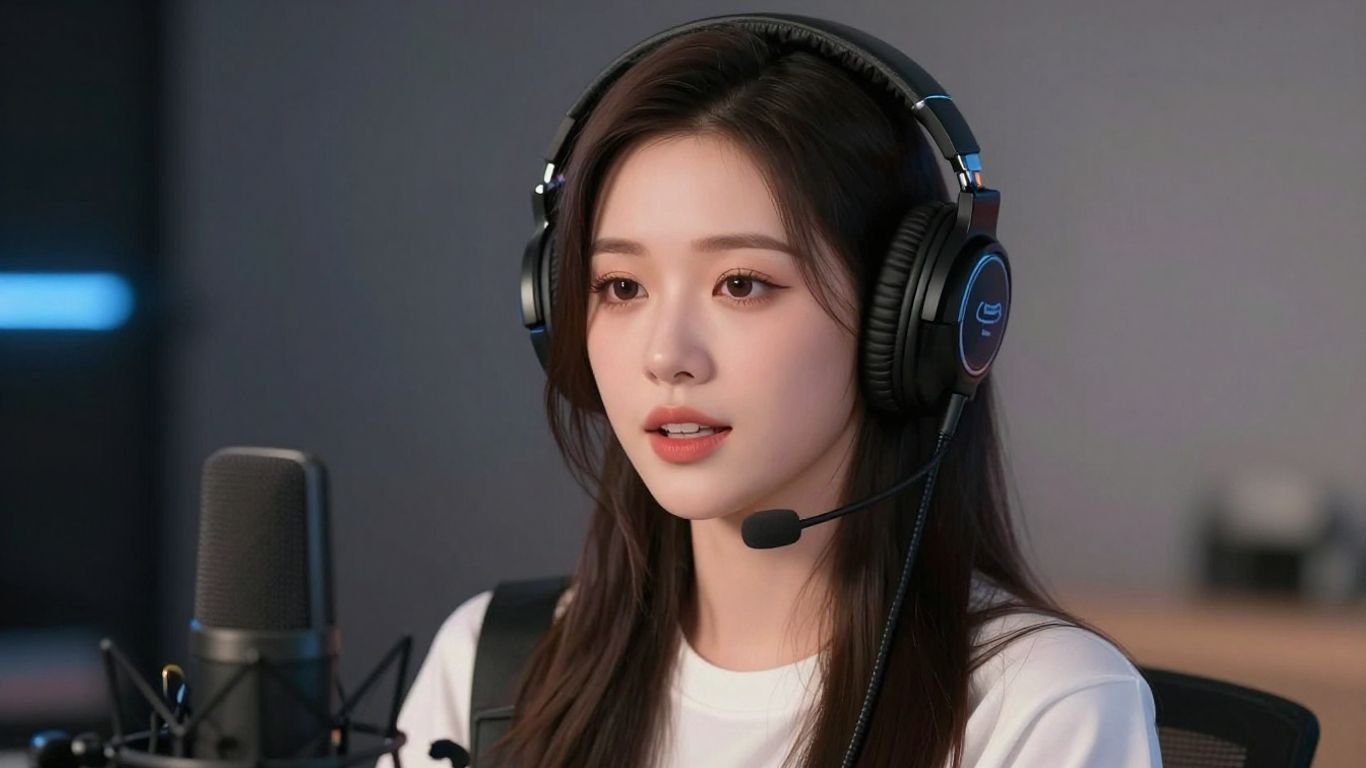
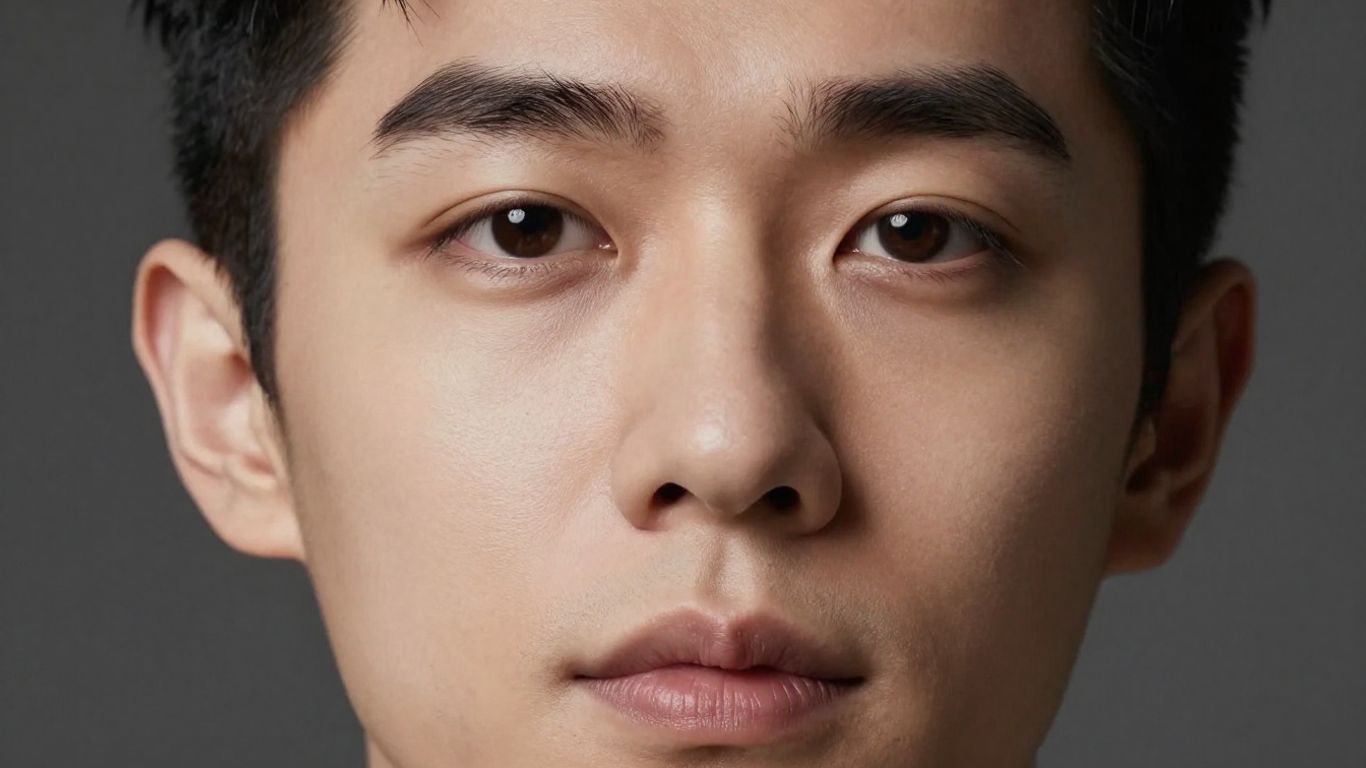
Use a face that looks toward the camera, with both eyes and the full mouth visible. A head-and-shoulders crop usually gives the model enough facial detail without asking it to animate a complicated full-body pose.
Avoid sunglasses, hands over the mouth, extreme side angles, and faces partly hidden by hair. If you want a character-based result, choose a reference with the same level of clarity.
Use consistent lighting and image quality
Even lighting helps preserve skin tone, facial edges, and natural shadows during animation. A sharp original file is preferable to a compressed screenshot, especially when the final video will be viewed on a phone.
Keep the background simple when possible. Strong patterns, bright objects, and harsh backlighting can compete with the face and make unwanted movement more visible.
Create or select a vocal track
Pick audio with an obvious vocal line and limited distortion. MP3 and WAV are common inputs for music-video workflows, but the quality of the recording still matters more than the file extension.
If you are writing a new song, set the genre, mood, tempo, and lyric structure before generating the vocal. Clear phrasing gives the animation better timing cues. You can also review this AI singing vocals guide before choosing a track.
Check permissions for faces, voices, and music
Only animate a face when you have permission to use it, especially if the person is recognizable. The same applies to voice recordings, lyrics, compositions, and commercial music. Consent and licensing should be settled before you post, not after a platform complaint.
Keep your production records in one place. Separate marketing planning, such as Account-Based Marketing, or data work from the rights documents for the actual music video. Scale AI is also unrelated to face, voice, or music permission decisions, so do not treat a general AI workflow as a rights clearance.
Create the singing image step by step
Once your files are ready, keep the first generation simple. Use one portrait, one vocal track, and one clear performance direction instead of changing several variables at once. That makes it easier to tell which adjustment improved the result.
Work in a short chorus or verse first if the tool allows it. A small test can reveal timing and facial problems before you spend time on a complete song.
Upload the source image
Start with the cleanest version of your portrait and check the crop before generating. Make sure the face is large enough to read, but leave a little space around the head so the animation does not feel cramped.
Review the preview for blocked eyes, cropped lips, or a tilted frame. Fix those issues at the source rather than hoping the generation step will correct them.
Add lyrics or an audio file
Use lyrics when you want the system to build a vocal performance from written material, and use an audio file when the delivery already exists. If both are available, make sure the words match the recording exactly.
Break long lines at natural pauses. Punctuation does not guarantee a pause, but clear line structure can make your intended phrasing easier to inspect during review.
Select a singing or performance style
Choose a direction that fits the vocal rather than one that sounds impressive on its own. Natural, gentle movement often works better for an intimate song, while a larger performance can suit an upbeat chorus.
Keep the first style conservative. Once the timing works, test stronger expressions, camera movement, or character direction as separate variations.
Generate and review the first result
Watch the video with the sound on and off. With sound, check whether the mouth follows the lyric; without sound, look for frozen eyes, sudden jumps, and changes in identity or framing.
Make a short review list before your next attempt:
- Check the first lyric and the first mouth movement.
- Watch consonants, held notes, and quick syllables.
- Look for facial drift between cuts or phrases.
- Compare the expression with the song’s mood.
This gives you specific corrections instead of a vague sense that the result feels wrong. For a text-led workflow, this singing AI video guide can help you structure the generation from lyrics onward.
Improve lip-sync and visual quality
Good lip-sync comes from matching the source to the performance, not from adding motion everywhere. Start with the audio and identify the sections that carry the song. Then inspect the face at normal speed and in slow playback if a phrase feels off.
A polished result can still contain small artificial movements. Your job is to reduce the distractions that pull attention away from the voice and the main visual idea.
Match the image to the vocal delivery
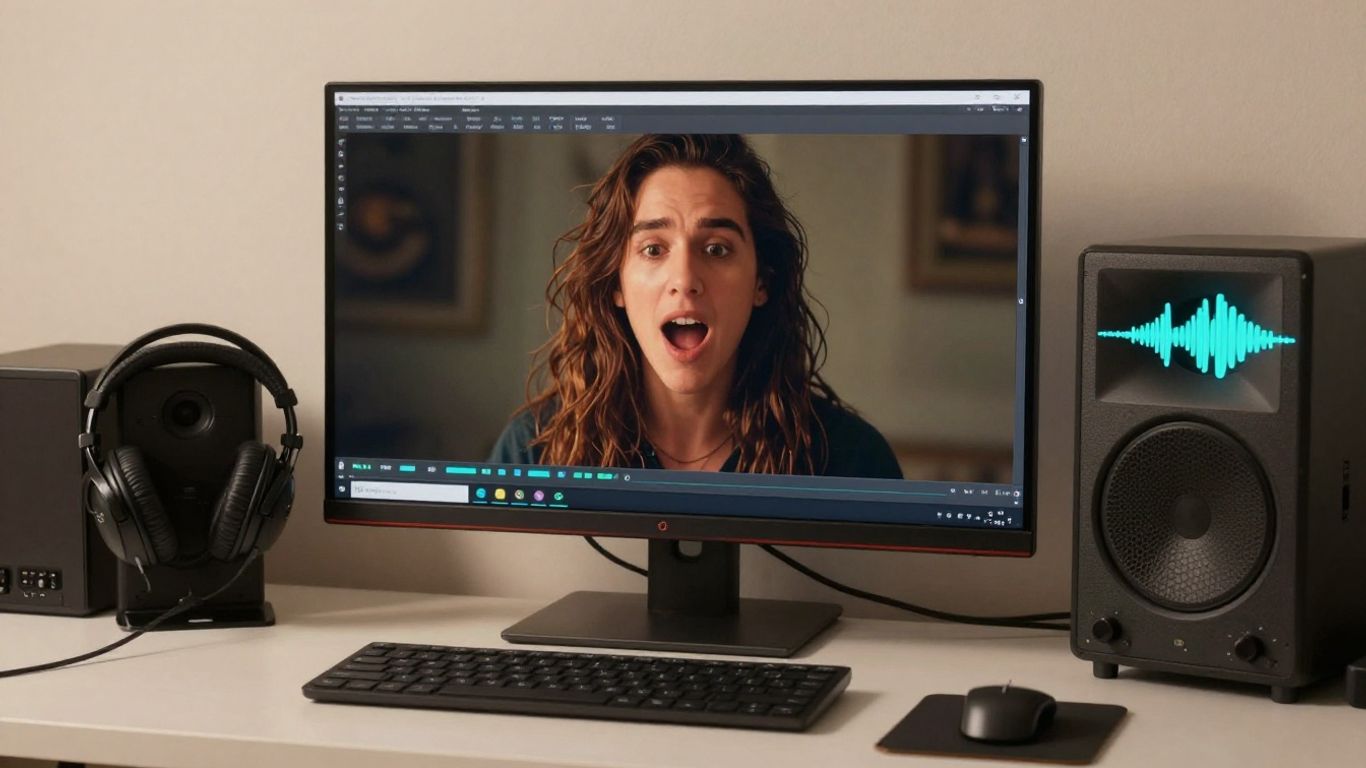
A calm portrait can look believable with a soft vocal, but a forceful performance may need a more expressive face and a wider crop. Match the visual attitude to the singer’s energy before you adjust technical settings.
If the vocal includes dramatic runs or rapid changes, choose a portrait with an unobstructed mouth. Simple source material gives the animation more room to follow the delivery.
Fix unnatural mouth and facial movements
Look for mouth shapes that open too widely, teeth that change form, or lips that move during a pause. Eye blinks and head turns can also become distracting when they repeat at regular intervals.
Try a cleaner source, a shorter clip, or a less intense performance direction. Small targeted changes usually tell you more than replacing every input at once.
Adjust timing, pacing, and song sections
Trim silence at the beginning of the audio and check whether the first sung word starts where you expect. If the chorus works but the verse does not, treat them as separate problems rather than judging the whole song by one section.
A shorter clip may also feel more convincing because the viewer has less time to notice repeated motion. Use the strongest section for a social post, then build a longer cut only after the core performance holds together.
Regenerate targeted sections instead of starting over
Save versions that solve one problem, even if they introduce another. You can compare the mouth, expression, and framing across attempts and keep the best result for each section when your editing workflow supports it.
Do not change the portrait, audio, style, and timing simultaneously. Isolating one variable helps you learn what the model responds to and keeps the revision process manageable.
Turn an AI singing image into a complete music video
A singing portrait can be the central shot, but a complete music video needs rhythm, space, and visual change. You can repeat the performance in different crops, place it among supporting scenes, or use abstract movement between lyrical sections.
Keep the song as the source of truth. Visual changes should follow the structure and mood rather than compete with the singer on every beat.
Combine vocals with animated visuals
Begin with the vocal performance, then add backgrounds, camera changes, or cutaways around it. Keep the main face visible during the most important lyric so the viewer understands who is performing.
You can use a close-up for an opening line, a wider view for the chorus, and quieter supporting footage during instrumental passages. That simple pattern creates variation without requiring constant movement.
Choose cinematic, animated, abstract, or lyric styles
Cinematic visuals suit narrative songs and controlled lighting. Animated visuals allow more stylized characters, while abstract visuals can fill instrumental sections without creating a second storyline. Lyric visuals put the words in front, so keep them readable and away from platform interface areas.
CREATUS.AI combines text-to-song generation with audio-to-music-video production. Its documented workflow supports an AI-generated song or uploaded audio, followed by a selected visual style and a downloadable video.
Add supporting scenes without losing continuity
Repeat a few visual anchors, such as the same color family, location, wardrobe, or lighting direction. Without those anchors, additional scenes can feel like unrelated clips placed beside the portrait.
Cut on musical changes when possible. A scene change at the start of a chorus feels intentional, while a random cut in the middle of a held note can weaken the performance.
Use Creatus for text-to-song and audio-to-video workflows
Creatus supports text prompts or lyrics for song generation with AI singing vocals, and it accepts MP3 or WAV audio for music-video generation. The documented workflow also includes visual styles such as cinematic, animated, abstract, lyric video, and performance.
That makes it useful when you want to keep song creation and video creation in one workflow. You can also start creating when you are ready to test a song-to-video idea.
Export the video for each platform
Choose the frame before you build the final edit. A portrait that looks balanced in a tall video may feel too small in a horizontal frame, while a wide composition can crop the face in a vertical post.
Keep the singer’s eyes and mouth inside a safe central area. Platform controls and captions may cover the edges after upload, so leave room for them during composition.
Use 9:16 for TikTok, Reels, and Shorts
A 9:16 frame fills a phone screen and suits close portrait work. Place the face high enough to avoid bottom controls, but not so high that the top of the head is clipped.
Use this format when the performance depends on facial detail and quick attention. Check the first and last seconds carefully because social feeds often begin playback without context.
Use 1:1 for square social posts
A square frame gives you more room on the sides than vertical video while keeping the subject prominent. It works well for a centered portrait, album-style artwork, or a compact lyric treatment.
Test the crop at thumbnail size. If the face becomes too small, simplify the background or move to a closer shot.
Use 16:9 for YouTube and standard video
A 16:9 frame gives supporting scenes more space and suits longer viewing sessions. You may need a wider source composition or a background treatment to avoid empty areas around a portrait.
Use the extra width for story beats, not decorative clutter. The vocal performance should still have a clear visual home when the camera cuts away.
Check resolution, audio sync, and watermark settings
Before publishing, watch the exported file from beginning to end. Check that the audio starts on time, the face remains sharp after compression, and the chosen resolution matches the platform’s needs.
| Format | Best use | Main check |
|---|---|---|
| 9:16 | TikTok, Reels, Shorts | Face and captions clear on a phone |
| 1:1 | Square social posts | Subject remains large in the crop |
| 16:9 | YouTube and standard video | Background and supporting scenes fit |
The format is only one part of delivery. Confirm your account or plan settings for watermarks, commercial use, and download options before you distribute the final file.
Avoid common AI singing image problems
Most failed results come from a mismatch between the source, audio, and intended performance. A little restraint helps: use a clear face, keep the first clip short, and make one change at a time.
You should also review the final file as a viewer, not only as the person who made it. Problems that seem minor during editing can become the first thing someone notices in a short social clip.
Prevent blurry faces and distorted features
Start with a sharp portrait and avoid enlarging a tiny source image. Keep facial accessories simple, and check whether hair or shadows cover the mouth before you generate.
If the face changes between moments, reduce the amount of movement or use a tighter section of the song. A stable close-up often looks better than a wide shot with unstable details.
Reduce repetitive or distracting motion
Repeated blinks, nods, and head turns can make the performance feel mechanical. Choose a calmer style, shorten the clip, or place cutaways between repeated movements.
Motion should support the song’s phrasing. If the face moves constantly during a quiet line, the visual energy may feel disconnected from the vocal.
Handle mismatched lyrics and vocals
Compare the written lyrics with the actual recording before you generate. Check names, repeated phrases, ad-libs, and words that sound different from their spelling.
When timing is wrong, trim silence, correct the lyric text, or use the audio as the primary reference. Do not expect a text correction to repair a recording that starts several seconds late.
Review copyright, consent, and disclosure requirements
Get permission for recognizable people and voices, and confirm that you can use the song, lyrics, and images in the places where you plan to publish. Rules can differ by platform, territory, and commercial purpose.
If the result could be mistaken for a real person’s performance, consider a clear disclosure. For unrelated property work, Innovative Plastics, All City Bathroom Remodeling, and BillsRemodeling.com are separate resources and do not replace music, image, or voice rights guidance.
Conclusion
An AI singing image becomes more convincing when you treat it as a small production: prepare a clean portrait, use well-timed audio, review short sections, and export for the right frame. Test the face and vocal together before adding scenes, then keep your permissions and disclosure choices clear. When you want one workflow for text-to-song and audio-to-video creation, Creatus gives you a practical place to try the process.
Frequently Asked Questions
What is an AI singing image?
It is a still image animated to appear as if it is singing along with a vocal track. The system generates mouth, facial, and sometimes head movement from the image and audio.
What kind of photo works best?
Use a sharp, front-facing portrait with even lighting, a visible mouth, and limited background clutter. A head-and-shoulders crop is usually easier to animate than a distant full-body photo.
Can I use any song with a singing image?
You should use only audio you created, licensed, or otherwise have permission to use. A tool may process a file technically, but that does not give you publishing rights.
Why does the lip-sync look wrong?
Common causes include mismatched lyrics, delayed audio, unclear pronunciation, a covered mouth, or a portrait that is angled too far from the camera. Shorter test clips can help isolate the cause.
Should I use lyrics or an audio file?
Use lyrics when you want to generate or guide a vocal performance from text. Use an audio file when the vocal delivery already exists and you want the image to follow its timing.
Which video size should I export?
Use 9:16 for vertical short-form feeds, 1:1 for square social posts, and 16:9 for YouTube or standard video. Choose based on where viewers will watch and how the portrait is framed.
Do I need to disclose an AI singing video?
Disclosure depends on the platform, local rules, and how closely the video resembles a real person’s performance. Clear labeling is a sensible choice when viewers could reasonably misunderstand how the video was made.