So, you’ve got an MP3 ready to go and you’re thinking about turning it into a music video using AI. It sounds complicated, right? Well, it’s actually gotten pretty straightforward. This guide will walk you through the whole process, from getting your audio file ready to hitting that final download button. We’ll cover the basics of how these AI tools work and what you need to do to get the best results. Let’s get your music seen!
Key Takeaways
- Most AI video generators prefer MP3 files because they are common and easy to process.
- Make sure your MP3 is a good quality, around 192kbps or higher, for the best visual sync.
- Check the platform’s limits for file size (often around 50MB) and song duration (usually up to 10 minutes).
- You can upload your MP3 directly; no need to convert it to WAV first.
- After uploading, you’ll pick visual styles and then generate your video.
Understanding AI Video Generation From Audio
The Evolution of Audio-to-Video Conversion
Think about how videos used to be made. It was a complex process involving cameras, actors, and lots of editing. Now, artificial intelligence is changing that. AI video generation uses algorithms to create video content from simple inputs like text or images. This means you can produce videos much faster and often with fewer resources than before. It’s a big shift from traditional filming methods, offering a new way to produce videos efficiently.
Key Components of AI Music Video Generators
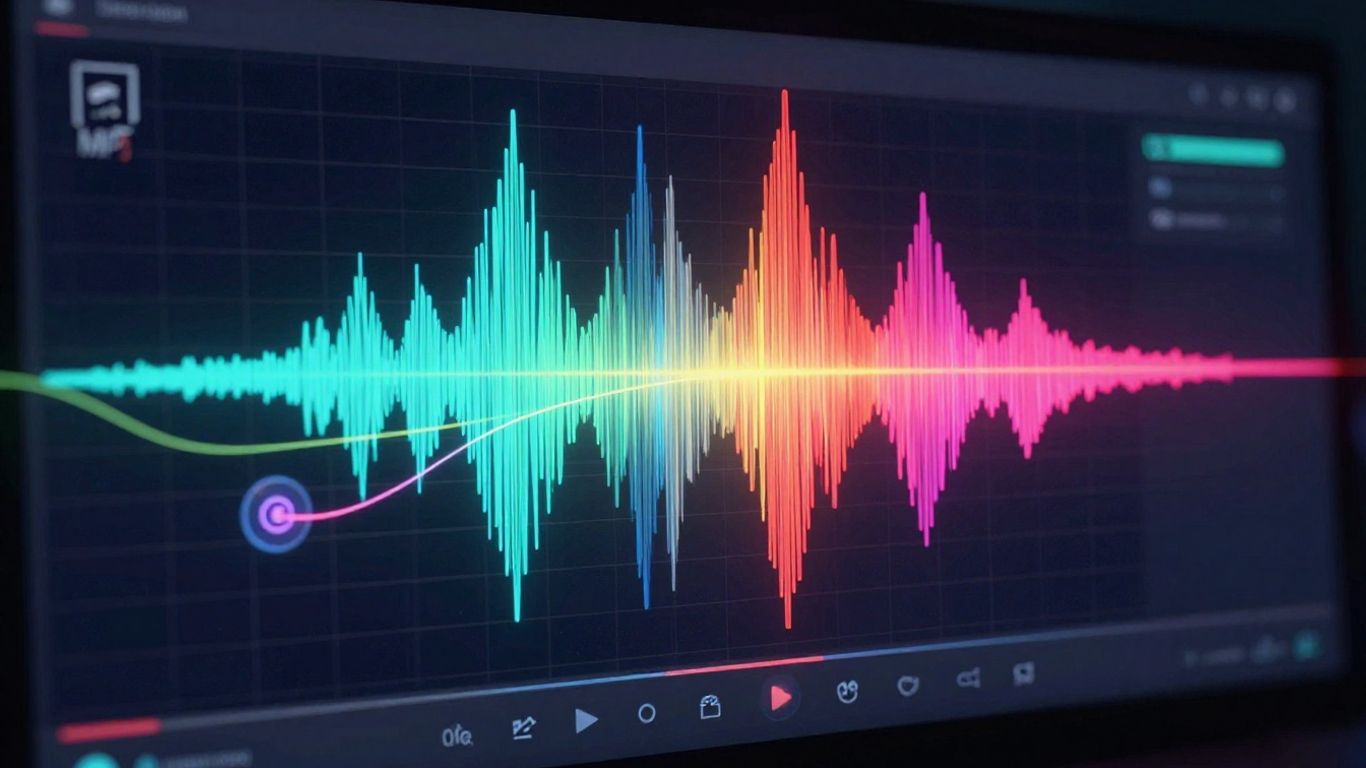
AI video generators that work with audio typically analyze your music file. They look at things like the beat, tempo, and overall mood. Based on this analysis, the AI selects or creates visuals that match the audio’s energy. Some tools also synchronize lyrics or add visual effects that react to the sound. The goal is to create a cohesive visual experience that complements your audio track. These systems often use pre-existing footage, AI-generated imagery, or animated elements to build the video.
Benefits of Using AI for Music Videos
Using AI for your music videos saves a lot of time and money. You don’t need a big production crew or expensive equipment. AI tools can handle much of the heavy lifting, from generating visuals to syncing them with your music. This makes creating professional-looking music videos accessible even if you’re on a tight budget. It’s a practical way to get your music out there visually without the traditional barriers.
- Speed: Generate videos in minutes, not days.
- Cost-Effectiveness: Significantly lower production costs.
- Accessibility: No advanced technical skills required.
- Customization: Many tools offer various styles and themes.
AI video generation is rapidly evolving, making it easier for creators to produce engaging visual content. The technology analyzes audio cues to match visuals, streamlining the production process for musicians and content creators alike.
Preparing Your MP3 for Upload
Before you upload your audio, a little preparation goes a long way. Getting your MP3 file ready ensures the AI can analyze it properly and create the best possible video.
Optimal MP3 Quality for AI Analysis
For the AI to really understand the nuances of your track, a higher quality MP3 is best. Aim for a bitrate of at least 192kbps, but 320kbps is ideal. This gives the AI more data to work with for accurate beat detection and mood analysis. Higher quality audio leads to more precise synchronization between the music and the visuals.
Understanding File Size and Duration Limits
Most AI video generators have limits on the files you can upload. Typically, you’ll find restrictions on both file size and the total duration of the audio. For example, many platforms accept MP3s up to 50MB and songs around 10 minutes long. If your track is longer, you might need to trim it down before uploading. Always check the specific platform’s requirements.
Why MP3 is Preferred Over WAV for Upload
You might wonder if you should convert your MP3 to WAV. For most AI video generators, this isn’t necessary. MP3 is a widely compatible format that these tools can process directly. There’s usually no quality advantage to converting to WAV first, as the AI handles the MP3 decoding internally. This saves you an extra step and keeps the workflow simple. You can learn more about creating a professional music video using AI to see how different formats play a role.
While WAV files offer lossless audio, the compression in a high-quality MP3 (like 320kbps) is often imperceptible to the human ear and sufficient for AI analysis. The convenience of MP3 often outweighs the marginal benefits of WAV for this specific application.
Here’s a quick look at recommended MP3 settings:
| Setting | Recommended Quality |
|---|---|
| Bitrate | 320kbps (Ideal) |
| 192kbps (Good) | |
| File Size | Up to 50MB |
| Duration | Up to 10 minutes |
How to Upload MP3 to AI Video Generator
Selecting the Right AI Video Platform
Choosing the right platform is your first step. Think about what you need from the video. Some tools focus on lyric videos, while others create more abstract visuals. Look for platforms that support MP3 uploads directly, saving you conversion steps. Many offer free trials, so you can test them out before committing.
Navigating the Upload Interface
Once you’ve picked a platform, finding the upload option is usually straightforward. Most AI video generators have a clear button or drag-and-drop area for your audio file. You’ll typically find this on the main dashboard or within a project creation screen. The goal is to make this process as simple as possible.
Here’s a general idea of what to expect:
- Locate the Upload Area: Look for labels like "Upload Audio," "Add Track," or a similar prompt.
- Select Your MP3: Browse your computer for the MP3 file you want to use.
- Confirm Upload: Click "Open" or "Upload" to start the transfer. Some platforms might show a progress bar.
Initiating the Video Generation Process
After uploading your MP3, the platform will analyze it. This is where the AI starts working its magic, identifying beats, tempo, and mood. You’ll then usually select a visual style or theme that matches your music’s vibe. Finally, you’ll hit a "Generate" or "Create Video" button to start the AI’s video creation process. This can take a few minutes depending on the song’s length and the platform’s processing speed. You can often convert audio files into video with just a few clicks.
The AI analyzes your audio file to understand its rhythm and energy. This analysis is key to syncing the visuals correctly. Don’t skip this step if the platform offers options to adjust the analysis sensitivity, as it can fine-tune the final output.
Customizing Your AI-Generated Music Video
Once your AI video generator has processed your MP3, it’s time to make the video truly yours. Most platforms offer a range of options to tweak the visuals and overall feel. You’re not just stuck with the first thing the AI spits out.
Choosing Visual Styles and Themes
AI video tools often come with pre-set visual styles. These can range from realistic stock footage to abstract animations or even AI-generated scenes. Think about the mood of your song. Is it upbeat and energetic, or more mellow and introspective? Pick a style that matches. Some generators let you select themes like ‘cinematic,’ ‘performance,’ or ‘lyric video.’
- Cinematic: Uses high-quality footage, often with a narrative feel.
- Animated: Features cartoons or motion graphics.
- Abstract: Focuses on patterns, colors, and shapes that react to the music.
- Lyric Video: Displays your song’s lyrics prominently, often with animations.
Integrating Branding and Watermarks
If you’re promoting a brand or your artist identity, you’ll want to add your logo or a watermark. Most AI video platforms allow you to upload your own image files for this purpose. You can usually position these elements where they won’t distract from the main visuals. This step is key for maintaining brand consistency.
Some tools also let you customize text elements, like song titles or artist names, with different fonts and colors. This adds another layer of personalization to your video.
Adjusting Video Settings and Aspect Ratios
Consider where you’ll be sharing your music video. Different platforms prefer different video dimensions. Most generators will offer common aspect ratios:
- 16:9 (Landscape): Standard for YouTube and most desktop viewing.
- 9:16 (Portrait): Ideal for TikTok, Instagram Reels, and YouTube Shorts.
- 1:1 (Square): Good for Instagram feeds and other social media posts.
Make sure you select the correct ratio before generating or exporting. You might also find options to adjust video quality, frame rates, or even specific effects like color grading. These settings can subtly change the final look and feel of your video.
Post-Generation and Export Options
Once your AI has finished creating your music video, you’ll want to review it and get it ready for sharing. This is your chance to make sure everything looks and sounds just right.
Reviewing and Refining Your Video
Take a close look at the video the AI generated. Does it match the mood of your song? Are the visuals synced well with the music? Most platforms offer a built-in editor. You can usually tweak things like the timing of certain scenes, adjust colors, or even swap out some of the generated visuals if they don’t quite hit the mark. It’s a good idea to check the synchronized captions if your song has lyrics, as AI can sometimes miss a word or two.
Understanding Output Formats
When you’re ready to export, you’ll likely see several format options. The most common is MP4, which works everywhere. You’ll also probably have choices for aspect ratio. For platforms like TikTok or Instagram Reels, you’ll want a vertical 9:16 format. For YouTube or general web use, a horizontal 16:9 is standard. Some tools also offer a square 1:1 format, which is good for Instagram feeds.
Here’s a quick look at common aspect ratios:
| Format | Use Case |
|---|---|
| 16:9 | YouTube, standard desktop video |
| 9:16 | TikTok, Instagram Reels, YouTube Shorts |
| 1:1 | Instagram Feed, Facebook |
Downloading and Sharing Your Music Video
After you’ve selected your desired format and aspect ratio, you can download the final video file. Most AI video generators will provide a direct download link. From there, you can upload your new music video to your preferred social media platforms, streaming services, or your own website. You’ve successfully turned your MP3 into a visual masterpiece, ready for the world to see. This whole process can often be completed in under five minutes, a huge change from traditional methods that could take weeks [a86c].
Remember that the goal is to create something that represents your music effectively. Don’t be afraid to spend a little extra time in the editing phase to get it just right. Small adjustments can make a big difference in the final product.
Once your amazing creation is ready, you’ll find easy ways to save and share it. We’ve made it super simple to get your AI-generated video out into the world. Ready to see what you can make? Visit our website today to start creating!
Wrapping Up
So there you have it. Uploading your MP3 to an AI video generator is pretty straightforward these days. You pick a tool, drop in your audio file, maybe choose a style or two, and let the AI do its thing. It’s a big change from the old days of trying to sync visuals manually. Now, you can get a decent-looking music video out of your track pretty quickly, often without needing any fancy editing skills. Give it a try with your next song or even an old demo – you might be surprised at what you can create.
Frequently Asked Questions
What’s the best kind of MP3 file to use?
For the best results, try to use an MP3 file that’s at least 192kbps. A 320kbps MP3 gives the AI the most detail to work with, helping it perfectly match visuals to your music’s beat and mood. Lower quality files can still work, but the sync might not be as spot-on.
Are there limits on how big or long my MP3 file can be?
You can usually upload MP3 files up to 50MB, and they should be around 10 minutes or less. This covers most songs! If your file is longer, you can easily trim it down before you upload.
Can I upload more than one MP3 at a time?
Right now, you create one video for each MP3 you upload. But don’t worry, since it’s super fast to make a video – often under five minutes – you can process a whole bunch of songs pretty quickly, like an entire EP, in one go.
Will the video I create have a watermark on it?
Nope! You won’t get any watermarks on your videos. The AI tool creates clean, 1080p videos that are ready to be shared anywhere, even if you’re using the free version.
Do I need to change my MP3 to a WAV file before uploading?
No need to convert! The AI tool works directly with MP3 files. There’s no real quality benefit to changing it to WAV first, as the AI handles the MP3 file just fine on its own.
What kind of video file will I get at the end?
You’ll get an MP4 video file. It’s a standard format that works everywhere, so you can upload it straight to YouTube, TikTok, Instagram, or any other platform without any issues.