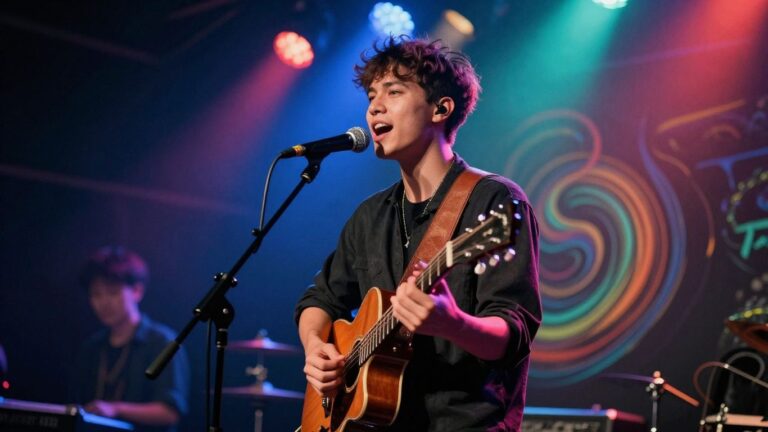
So, you’re looking to spice up your Spotify tracks with some cool visuals, right? Making an ai music video for Spotify Canvas used to be a whole production, but now? AI makes it way easier. You can create these short, looping videos that play when someone streams your song. It’s a great way to grab attention without needing a huge budget or a film crew. Let’s figure out how you can get your music looking as good as it sounds.
Key Takeaways
- Spotify Canvas videos are short, looping visuals that play on your track pages, designed to boost engagement and make your music stand out.
- AI tools can now generate both the music and the video for your track, simplifying the entire creation process into one workflow.
- When creating your ai music video for Spotify canvas, pay attention to the technical specs: typically 3-8 seconds long, vertical format (9:16), and under 10MB.
- Choosing the right AI tool depends on your needs; some focus on song generation, others on video, and some, like Creatus, offer both in a single platform.
- Using AI for your music videos can significantly cut down production costs and time, making it accessible for independent artists to create professional-looking content.
Understanding Spotify Canvas Requirements
Spotify Canvas is a feature that lets you add short, looping videos to your tracks. These visuals play automatically when someone streams your song on their mobile device. It’s a great way to make your music stand out and give listeners a more engaging experience. You can use this feature for free through Spotify for Artists, no matter your label status.
What is a Spotify Canvas Video?
A Spotify Canvas is a looping video, typically between 3 and 8 seconds long. It’s designed to play vertically, fitting the 9:16 aspect ratio common on mobile screens. Think of it as dynamic album art that brings your music to life. Desktop users won’t see your Canvas, but mobile listeners will get the full effect.
Key Specifications for Canvas Uploads
To make sure your Canvas looks its best, you need to follow some guidelines. The video should be vertical with a 9:16 aspect ratio. It needs to be between 3 and 8 seconds long and loop smoothly. Keep the file size under 10MB to ensure quick loading times for your fans. Adhering to these specs is key for a good listener experience.
Here are the basic requirements:
- Duration: 3-8 seconds
- Aspect Ratio: 9:16 (vertical)
- File Size: Under 10MB
- Format: MP4 or JPG
Recommended Video Formats for Loops
Spotify suggests a few ways to format your loops for maximum impact. A continuous loop means the end of the video flows right back into the beginning, creating a seamless experience. A rebound or boomerang effect plays the video forward and then backward, giving a cool, back-and-forth motion. A hard cut is simply a clip that ends without trying to loop back smoothly. Choose the style that best fits your song’s vibe.
The goal is to create a visual that complements your music without being distracting. A well-executed loop can significantly increase how often listeners engage with your track, leading to more streams and saves. It’s a simple addition that can make a big difference in how your music is perceived on the platform.
Leveraging AI for Music Video Creation
Defining Your AI Music Video Concept
Before you start generating visuals, think about what you want your video to convey. What’s the mood of your song? What story, if any, are you trying to tell? Jot down some keywords or a short description. This will be your starting point for the AI.
Consider the overall aesthetic. Do you want something abstract and colorful, or more grounded and realistic? Having a clear idea, even a rough one, helps guide the AI toward the visuals you’re imagining. It’s like giving directions to a very literal artist.
Choosing the Right AI Tool for Your Project
There are many AI tools available, and they each have their strengths. Some are better for quick, abstract loops, while others can create more detailed, narrative-driven scenes. Look for tools that offer the kind of output you need, whether that’s text-to-video, image-to-video, or audio-reactive visuals.
Think about your budget and technical skill. Some tools are free or have free tiers, making them great for starting out. Others require a subscription but offer more advanced features and higher quality results. Check if the tool allows for vertical video formats (9:16) directly, as this is key for Spotify Canvas.
Crafting Effective AI Prompts for Visuals
This is where you really talk to the AI. Your prompts need to be descriptive and specific. Instead of "a cool landscape," try "a neon-drenched cyberpunk city at night, with flying cars and rain reflecting off the wet streets, cinematic lighting, wide-angle shot." The more detail you provide, the better the AI can interpret your vision.
Experiment with different keywords related to art styles, camera angles, lighting, and mood. You might also want to specify the aspect ratio you need. Don’t be afraid to iterate; your first prompt might not give you exactly what you want, but it’s a step in the right direction.
The quality of your AI-generated video hinges on the quality of your prompts. Think of it as a conversation where you need to be very clear about what you’re asking for. Be descriptive, be specific, and be prepared to refine your requests.
Generating Your AI Music Video
Now that you have a concept and have chosen your AI tools, it’s time to bring your music video to life. This stage involves translating your ideas into visual sequences that align with your song’s mood and rhythm.
Text-to-Song and Audio-to-Video Workflows
Many AI tools offer a dual workflow. You can either generate a song from text prompts and then create a video for it, or upload your existing track to have the AI build visuals around it. The audio-to-video process typically analyzes your song’s tempo, energy, and structure to sync the visuals. This means your video will naturally follow the beat and feel of your music.
Selecting Visual Styles and Themes
AI tools provide a range of visual styles, from cinematic and animated to abstract or lyric-focused. Think about what best represents your song’s message and your artist brand. Do you want something realistic, surreal, or perhaps a dynamic lyric display? Experimenting with different styles is key to finding the perfect fit.
Refining and Exporting Your Video Content
Once the initial generation is complete, you’ll likely need to make some adjustments. This might involve tweaking the timing, adjusting the intensity of effects, or re-generating specific scenes. Most platforms allow you to preview and refine your video before exporting. Always export in a vertical 9:16 aspect ratio for Spotify Canvas. Ensure your final export is at a high resolution, typically 1080p, for the best quality display on mobile devices. You can find more tips on creating music videos with AI at this guide.
Remember that AI is a tool to assist your creativity, not replace it entirely. Your input and refinement are what will make the video unique and compelling.
Integrating AI Music Videos with Spotify
Uploading Your AI-Generated Video to Spotify
Once you’ve created your AI music video, it’s time to get it onto Spotify. You’ll upload this video through your distributor. Most distributors have a section for managing your releases, and this is where you’ll find the option to add a Canvas video. Make sure your video meets Spotify’s requirements before you upload.
Understanding the Processing Time
After you upload your AI-generated video, Spotify needs some time to process it. This usually doesn’t take too long, but it’s not instant. You might see a "processing" status for a little while. It’s a good idea to check back on your track page a few hours later to see if it’s live.
Maximizing Engagement with Canvas
Spotify Canvas is all about grabbing attention. Your AI video should loop smoothly and fit the vibe of your song. Keep it short, usually between 3 to 8 seconds, and make sure it’s visually interesting. A good Canvas can make listeners stop and pay attention to your music.
Here’s a quick rundown of the key specs:
- Resolution: 720×720 pixels (square) or 1080×1920 pixels (vertical).
- Length: 3 to 8 seconds.
- Format: MP4 or JPG.
- File Size: Under 10MB.
- Looping: Must be a seamless loop.
Think of your Canvas as a mini-visualizer that plays while your song streams. It’s your chance to give listeners a quick, engaging visual experience that matches the mood of your track. Don’t overcomplicate it; a simple, well-executed loop often works best.
Advanced AI Music Video Techniques
You’ve got the basics down, but let’s push the boundaries of what AI can do for your music videos. This section explores more sophisticated methods to make your visuals truly stand out.
Utilizing Image-to-Video Generation
This technique takes a static image and brings it to life with motion. You can start with a photograph, a piece of digital art, or even a generated image. Then, you guide the AI to animate it, adding camera movements, subtle shifts, or more dramatic effects. This allows you to create dynamic visuals from existing assets or unique AI-generated artwork. It’s a great way to add a fresh perspective to stills you already have.
Exploring Audio-Reactive Visuals
Audio-reactive visuals are graphics that change and move in sync with your music’s rhythm, pitch, and volume. Think of classic music visualizers, but powered by advanced AI. The AI analyzes your audio track and translates its characteristics into visual elements like color shifts, pulsating shapes, or dynamic patterns. This creates a direct, visceral connection between the sound and the image, making for a more immersive viewing experience.
Combining AI Tools for Unique Results
Don’t limit yourself to a single AI tool. You can achieve truly unique results by chaining different AI processes together. For example, you might use a text-to-image AI to generate a series of concept art pieces, then feed those into an image-to-video AI for animation. You could also use an AI music generator to create a unique track, then use that audio to drive an audio-reactive visualizer. Experimentation is key here; try different combinations to see what surprising visuals emerge. This approach lets you build complex visual narratives that would be difficult or impossible with traditional methods. You can find platforms that offer a suite of tools, simplifying this multi-step process. For instance, some platforms allow you to generate music videos directly from audio analysis.
The Benefits of AI Music Videos for Artists
Creating music videos used to be a huge hurdle for independent artists. Now, AI tools change that. You can produce visuals that look professional without needing a big budget or a film crew. This means more artists can get their music seen.
AI makes content creation much faster. Instead of weeks or months, you can generate video clips in hours or days. This speed is great for releasing music frequently and keeping your audience engaged. You can experiment with different styles and ideas quickly.
AI offers a cost-effective way to produce high-quality visuals. Traditional music videos require expensive equipment, locations, and skilled personnel. AI tools cut down these costs significantly, making professional-looking videos accessible to artists at any stage of their career. You get more bang for your buck.
Here are some key advantages:
- Reduced Production Costs: Skip the expensive gear and crew.
- Faster Turnaround: Generate videos in a fraction of the traditional time.
- Creative Exploration: Easily try out different visual styles and concepts.
- Accessibility: No prior video editing or filmmaking experience needed.
AI tools democratize music video creation. They put powerful visual production capabilities directly into the hands of musicians, leveling the playing field. You can now compete with bigger artists visually, even with a smaller budget.
These tools also help you connect better with your fans. Engaging visuals on platforms like Spotify Canvas can make your music more discoverable. A captivating loop can draw listeners in and encourage them to explore more of your work. It’s a smart way to boost your artist branding and overall promotion.
Making music videos with AI is a game-changer for artists. Imagine creating cool visuals for your songs without needing a big crew or expensive gear. AI tools can help you bring your music to life visually, making your tracks stand out. Ready to see how easy it is? Visit our website to start creating your own AI music videos today!
Wrapping Up Your AI Music Video Journey
So, you’ve learned how to use AI to make music videos, specifically for something like Spotify Canvas. It’s not as complicated as it might seem. Tools like Creatus AI let you go from a text idea to a full song and then a video, all in one place. You don’t need to be a music producer or a video editor to get started. Just type in what you want, let the AI do its thing, and then export it in the right format for Spotify or other platforms. It’s a pretty straightforward way to get visuals out there for your music without breaking the bank or spending weeks on production. Give it a try and see what you can create.
Frequently Asked Questions
What exactly is a Spotify Canvas video?
Think of a Spotify Canvas as a short, looping video that plays when someone is listening to your song on their phone. It’s like a mini-music video that adds a cool visual to your track instead of just showing static album art. These videos are usually between 3 to 8 seconds long and loop smoothly.
What are the rules for uploading a video to Spotify Canvas?
Spotify has a few guidelines to make sure your video looks good. It needs to be a vertical video, usually in a 9:16 aspect ratio, which is perfect for phones. It also has to be between 3 and 8 seconds long and loop seamlessly. Plus, the file size needs to be under 10MB to ensure it plays without any issues.
Can AI really create a whole song AND a music video?
Yes, it can! Tools like Creatus AI can actually generate a song from just a text idea you give them, complete with AI singing vocals. Then, you can take that song (or any audio file you have) and have the AI create a matching music video for it. It’s a pretty neat all-in-one process.
How do I make an AI music video if I’m not a pro?
You don’t need to be a video expert! Many AI tools are designed for beginners. You usually just describe what you want the video to look like – maybe the mood, colors, or actions – and the AI does the heavy lifting. Some tools even let you pick a visual style, so you can get a professional-looking video without any complicated editing.
Is it hard to get my AI-generated video onto Spotify?
Nope, it’s pretty straightforward. Once you have your video ready, you log into your Spotify for Artists account, find the song you want to add it to, and look for an ‘Add Canvas’ button. You’ll upload your video, confirm it’s not explicit if needed, and then hit post. Spotify will process it, and soon your fans will see it while they listen.
Why should I bother using AI for my music videos?
Using AI can be a game-changer, especially for independent artists. It’s way cheaper than hiring a film crew, and you can create content super fast. This means you can keep your music looking fresh with new visuals more often, which can help grab more attention from listeners and make them more likely to check out your music.