Key Takeaways
You can use free AI tools more effectively when you match each tool to one clear job and review the result before publishing.
- Start with a defined song, image, video, or voice brief.
- Use a text prompt to generate a full song with AI singing vocals.
- Upload MP3 or WAV audio when you already have a track.
- Pick visual styles and aspect ratios based on the publishing platform.
- Check quality, rights, branding, and free-tier limits before release.
Understand what CREATUS.AI offers
CREATUS.AI brings multiple AI tools into one workspace for creators, remote workers, and small-to-medium businesses. The platform includes 35+ AI models and tools, along with 90+ business integrations. That wider setup matters when your project needs more than a single generated file.
The CREATUS.AI AI workspace
The workspace gives you a central place to move from an idea to a usable piece of content. Its listed tools include text-to-video, AI avatars, face swap, image generation, image editing, text-to-speech, voice cloning, and virtual try-on. You can also read a practical AI music and video guide before choosing a workflow.
The role of specialized AI tools
Specialized tools reduce the number of decisions you need to make at once. A song generator handles musical input, while a video tool focuses on scenes, timing, and presentation. Treat each tool as a focused step rather than asking one prompt to solve an entire campaign.
Available tools for creators and businesses
The platform covers common media tasks for social posts, campaigns, internal projects, and creative experiments. You might start with an image, add speech, create an avatar video, or turn audio into a visual piece. For wider content planning, AI writing tools can help you shape a brief before you generate the media.
How the free tier fits into the platform
The free tier lets you test the workflow before you commit money or time to a larger project. Free access still requires planning because credits and generation limits can affect how many versions you make. Treat the first run as a test of fit, not as a promise that every final asset will be ready immediately.
Choose the right CREATUS.AI tool for your goal
Choose by output first, then by style and speed. A still image, talking character, edited portrait, voice track, and finished music video each need different inputs. The right starting point keeps you from spending credits on a tool that cannot produce the format you need.
Creating images and visual assets
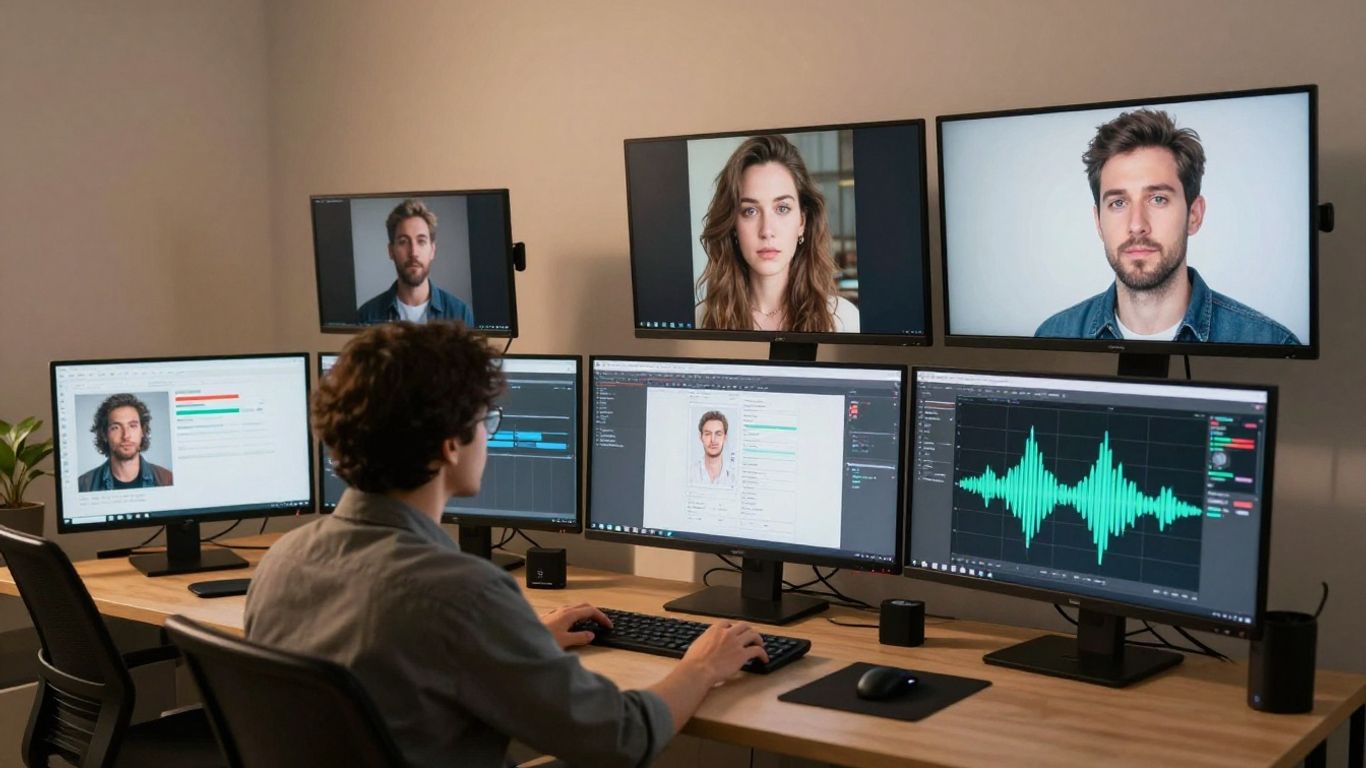
Image generation works best when you specify the subject, setting, lighting, framing, and intended use. Keep the first prompt focused, then change one visual detail at a time. If you need a simple image-to-video step, an online image animation tool can help you test motion before building a larger sequence.
Generating videos and AI avatars
Use video generation when movement, a presenter, or a sequence of scenes carries the idea. AI avatars fit presenter-led content, while text-to-video is better suited to visual sequences built from a description. Keep the brief concrete, with a subject, action, setting, and length in mind.
Editing images and swapping faces
Editing tools are useful when the source image is close but not ready. You can correct an unwanted detail, change part of a composition, or use face swap where the project and permissions allow it. Save the original file so you can compare the edited result rather than judging it in isolation.
Producing voice, speech, and audio content
Text-to-speech and voice cloning serve different needs, so decide whether you need a generated reading or a consistent voice identity. Use clean scripts with natural pauses and review pronunciation before publishing. A clear source brief usually improves every later media decision, from voice pacing to visual timing.
| Goal | Best starting input | Review before export |
|---|---|---|
| Image asset | Subject and visual direction | Composition and details |
| Avatar video | Script and presenter style | Timing and delivery |
| Edited image | Original image and change list | Edges and identity consistency |
| Voice content | Final script and voice direction | Pronunciation and pacing |
This simple comparison keeps the tool choice tied to the result you want. It also gives you a short checklist before you spend more credits on revisions.
Create a song with the AI music video generator
A music project can begin with a rough idea rather than a finished composition. The dedicated tool combines text-to-song generation with audio-to-music-video production, so you can move from a prompt to a track and then to visuals. If you want to start a song, begin with its mood, genre, tempo, and subject.
Turn a text idea into a complete song
Type a description that gives the system enough musical direction to work with. Include the genre, mood, tempo, lyrics, or rough idea, depending on what you already know. The tool composes music and produces a complete song with AI-generated singing vocals, so you do not need music production experience to test a concept.
Add AI singing vocals and define the style
Vocals change the character of a track, so describe the delivery as well as the genre. You can mention energy, pacing, emotional tone, and the role of the lyrics. Keep the first version simple, then adjust the style after you hear how the words and melody work together.
Upload MP3 or WAV files
You do not have to generate the audio inside the tool. If you already have a track, upload an MP3 or WAV file and use it as the source for the video stage. This makes the workflow useful for demos, completed songs, podcast music, and other audio you have permission to use.
Review the generated audio before making a video
Listen to the full track before you ask for visuals. Check the vocal pronunciation, arrangement, volume, and any sections that feel out of place. Fixing the audio first gives the video generator a stable source and prevents you from revising scenes around a track you will later replace.
Turn audio into a finished music video
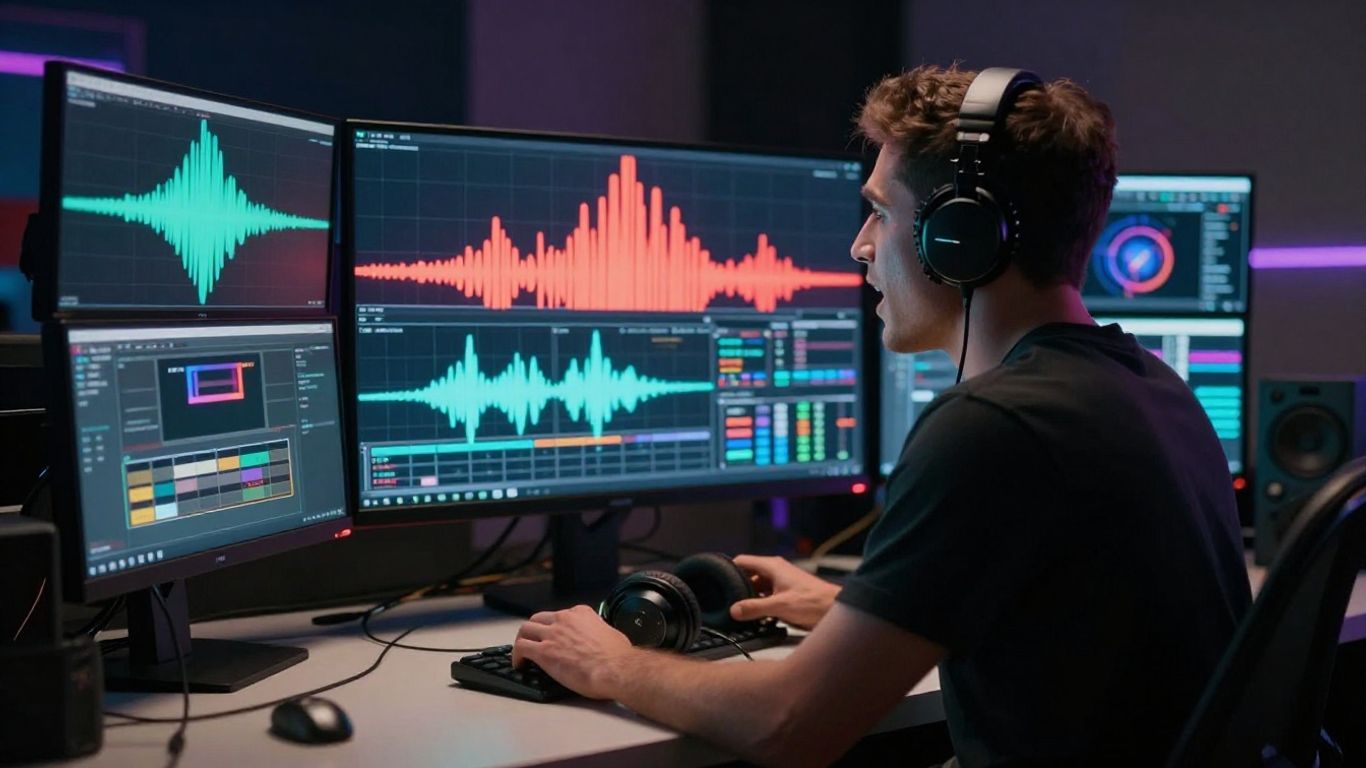
Once your audio is ready, the visual decisions should follow the song rather than compete with it. Think about rhythm, mood, lyric moments, and the way a viewer will see the video on a phone or a larger screen. The CREATUS.AI music video generator supports a workflow that starts with a prompt or uploaded audio and ends with a shareable music video.
Match visuals to tempo, mood, and song structure
Use slower scene changes for reflective passages and more active changes when the beat or chorus calls for energy. A visual idea can repeat with small variations, which often feels more coherent than a new setting every few seconds. Mark the intro, verse, chorus, bridge, and ending before you decide how the scenes should change.
Choose between cinematic, animated, abstract, and lyric styles
The visual style should support the song’s identity. Cinematic scenes can give a track a story-led feel, animated visuals can suit playful or stylized music, abstract motion can keep attention on rhythm, and lyric treatments can put the words first. Pick one dominant direction and use variations only when the song clearly changes.
Select the right aspect ratio for each platform
The same video may need different framing for different feeds. Use 9:16 for TikTok, Reels, and Shorts, 1:1 for square social placements, and 16:9 for YouTube. Keep faces, key actions, and important visual details near the center when you expect to reuse the source across formats.
Download videos for TikTok, Reels, Shorts, or YouTube
Before downloading, watch the final cut from beginning to end. Check that the opening makes sense without extra context and that the ending does not feel abruptly clipped. A practical commercial construction time lapse guide shows the same broader lesson: plan the visual record around the way people will view and use the finished footage.
Build an efficient free AI content workflow
Free tools work best when you treat them as parts of a repeatable process. Start with the core message, generate only the assets that support it, and keep source files organized. This approach is useful for a solo creator as well as a small team handling several formats.
Start with one clear creative brief
Write one short brief before opening the generator. Include the audience, purpose, tone, subject, visual direction, audio direction, destination platform, and any restrictions. You can also review a music video workflow for prompts that move from song generation to visual review without skipping the audio check.
Combine music, image, video, and voice tools
You do not need to generate every asset in one pass. A sensible sequence might begin with a song, continue with a cover image, add a short avatar clip, and finish with a voice version for another channel. Keep naming consistent so you know which source file belongs to each variation.
Reuse assets across multiple content formats
One finished song can support a full music video, a short vertical excerpt, a square cover post, and a behind-the-scenes clip. Reuse the strongest visual moments, but reframe them for each destination rather than shrinking one export everywhere. This saves credits and gives each version a clearer purpose.
Check generation limits before starting a project
Review the free allowance before you begin a multi-version project. Note how many attempts you may need for audio, images, video, and revisions, then reserve some capacity for fixing weak results. A free plan is most useful when you plan around its limits instead of treating every generation as unlimited.
A short working sequence keeps the project moving:
- Write the brief and define the publishing format.
- Generate or upload the audio source.
- Review the audio before adding visuals.
- Create one strong visual direction and test it.
- Export only after checking the final version.
This order reduces avoidable rework. It also makes it easier to identify whether a problem comes from the source, the prompt, the visual style, or the export settings.
Evaluate the free tools before publishing
A generated file is a draft until you review it as a viewer. Play it on the device and platform where you expect people to see it, then check both the first few seconds and the final frame. Free tools can support a strong process, but your review still determines whether the result is ready.
Review output quality and make targeted revisions
Do not regenerate everything when one part fails. Identify the exact issue, such as a strange vocal phrase, a distracting transition, a weak crop, or an inconsistent character. Change one input at a time so you can tell which revision helped.
Check branding, captions, and visual consistency
Look for consistent colors, characters, framing, and naming across the campaign. Captions should be readable on a phone and timed closely enough to support the audio. If your wider work includes external partners, keep their requirements separate from the creative prompt, as you would when reviewing Digital Farmers or EkoGroup campaign material.
Confirm export settings for the destination platform
Check the aspect ratio, file type, duration, crop, and audio before you publish. Watch the exported file rather than relying only on the editor preview. When you need a structured approval process, keep the source, version number, export, and final approval together in one folder.
Understand usage rights and avoid unsupported copyright claims
Keep records for uploaded audio, portraits, voices, and any licensed source material. Do not assume that a free generation automatically grants every commercial right or resolves copyright questions. Review the platform terms and your own permissions, including the Clickova.AI terms, when your project includes outside services.
The same caution applies to supporting content. If you use generated copy around the video, review it for accuracy and ownership separately, and do not present an AI output as proof of a person’s work, identity, or endorsement.
Conclusion
Completely free AI tools by CREATUS.AI are most useful when you choose a focused task, give the system a clear brief, review each output, and reserve time for rights and export checks. You can begin with text-to-song generation, upload MP3 or WAV audio, turn the result into a music video, and reuse the approved assets across social formats. When you are ready to test the workflow, start creating with a small project and judge the result on the platform where your audience will see it.
Frequently Asked Questions
Are completely free AI tools suitable for beginners?
Yes. They can help you test ideas without advanced production skills, but you still need to provide clear inputs and review the output before publishing.
Can you make a full song from text?
Some tools can generate a complete song from a text description, including music and vocals. Results vary, so listen for pronunciation, structure, and consistency.
Can you turn an existing song into a music video?
Yes, audio-to-video tools can use an existing MP3 or WAV file as the source. Make sure you have permission to use the audio before uploading or publishing it.
Which aspect ratio should you use for short-form video?
Vertical 9:16 usually fits mobile-first short-form feeds. Square 1:1 and horizontal 16:9 may be better for other placements, so choose based on the destination.
How do you improve an AI-generated video?
Review the audio and video separately, identify one specific weakness, and revise that part rather than changing every input at once. This makes each generation easier to assess.
Are AI-generated songs automatically copyright-free?
No. Rights depend on the source material, the service terms, your prompts, and local law. Keep records and avoid using protected material without permission.
What should you check before publishing AI content?
Check quality, captions, branding, export settings, permissions, and any platform rules. Also confirm that the final file does not contain unwanted artifacts or claims that you cannot support.