Key Takeaways
Creating professional visuals no longer requires extensive editing skills or high-powered studio software. You can produce high-quality content by using integrated AI tools that bridge the gap between initial musical inspiration and finalized video assets.
- Streamline production by using platforms that offer both song generation and video creation.
- High-resolution audio files lead to more accurate beat detection for your visual transitions.
- Select visual styles that align directly with the emotional tone or genre of your audio track.
- Utilize platform presets to ensure your video meets the required aspect ratios for social media.
- Automate the synchronization process to align peaks and drops with your video edits.
Understanding the AI music video generation process
Modern technology allows you to turn concepts into full media projects without expensive crew hires. The AI music video generation process relies on algorithmic beat mapping and style transfer to map your narrative onto a timeline.
How AI analyzes song structure and energy
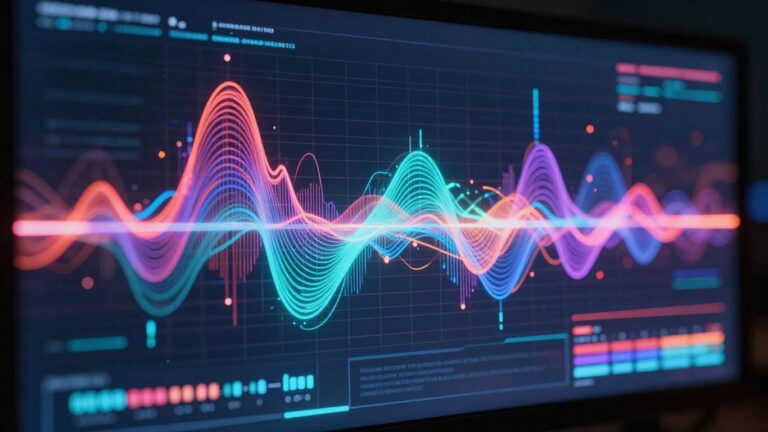
AI models listen for specific changes in frequency and intensity to identify musical markers. These systems detect beats, bass drops, and melodic shifts to determine where visual transitions should occur. By parsing these signals, the engine predicts the optimal intensity for a new scene.
The benefits of a single-platform workflow
Using a unified ecosystem like the Creatus.AI platform removes the friction of moving files between disparate software suites. You save time by keeping your metadata and artistic parameters within a single workspace. Managing assets in one location ensures that your creative vision remains consistent from the first draft to the finished export.
Supported file formats for seamless uploads
Compatibility matters when you work with various hardware and software recording outputs. Most AI generators prefer industry-standard files for maximum fidelity throughout the processing stage.
| Format | Best Usage | Quality Level |
|---|---|---|
| WAV | High-fidelity master output | Professional |
| MP3 | Optimized web distribution | Standard |
| AAC | Mobile-friendly playback | Compressed |
Standard inputs allow the underlying engine to perform accurate analysis and spectral fingerprinting.
Comparing manual editing versus AI automation
Traditional editing requires you to place clips on a timeline manually while matching footage to audio pulses. Manual labor is precise in the hands of a pro, but automation is faster for rapid content deployment. When you need to push content out quickly, AI tools provide a reliable shortcut that requires little training to manage effectively.
Preparing audio files for optimal AI processing
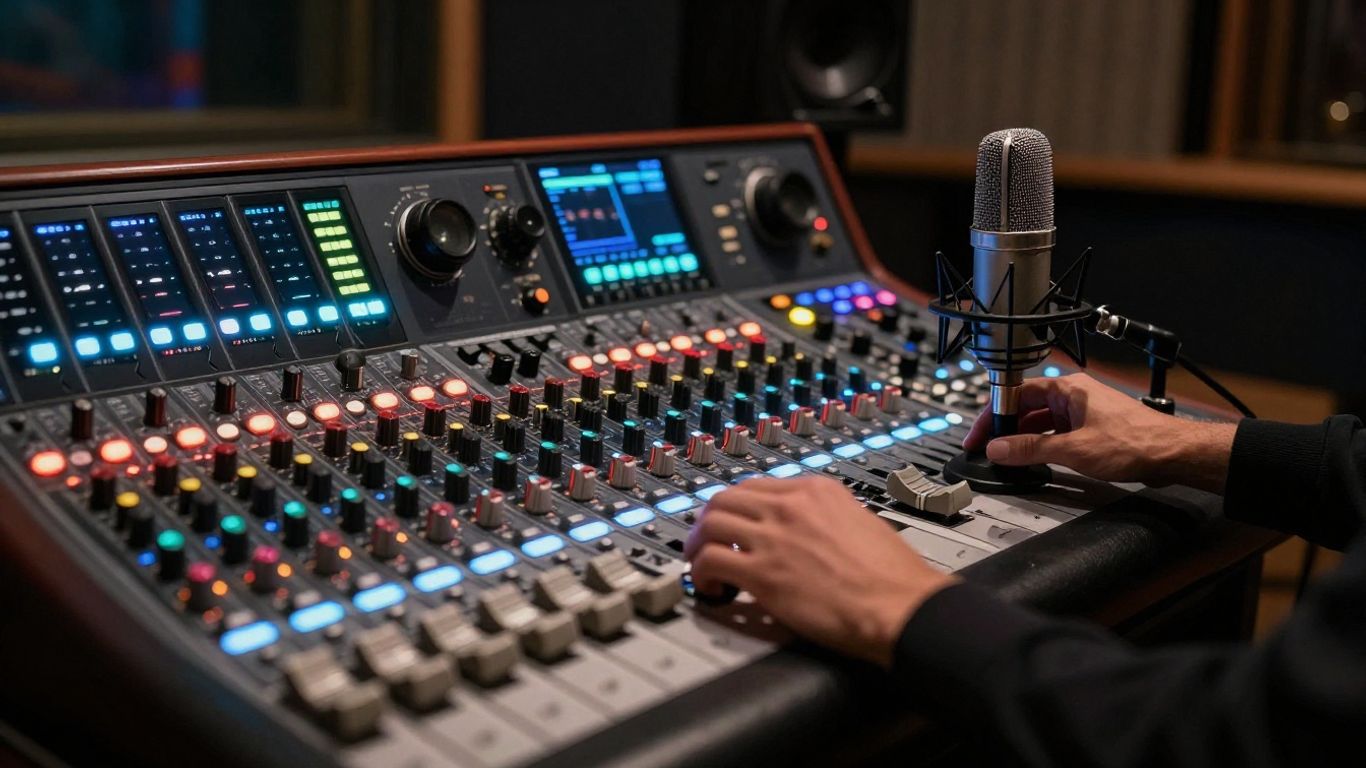
Clarity in your input audio dictates the quality of the resulting visuals. If your track is muddy or lacks dynamic range, the AI may struggle to interpret precise transitions.
Choosing between MP3 and WAV for export quality
WAV files are preferred because they contain uncompressed data that preserves peak volume information. While MP3 files are acceptable for quick tests, WAV tracks allow for better detection of low-end frequencies which often trigger scene changes. Aim for 24-bit depth if you want the highest possible stability during generation.
Ensuring audio clarity to assist beat detection
You should prune silent sections at the start or end of your clips to help the software lock onto the rhythm immediately. Remove excessive background hiss or noise that might confuse the frequency analysis. By using a clear vocal-forward mix, you help the Creatus.AI engine create precise visual cues that match your intent.
Managing file duration and length requirements
AI modules for video often have capacity limits per project for resource management reasons. If you plan to produce a long-form track, consider breaking it into logical chapters or scenes before starting. Checking the file duration against the platform guidelines prevents interruption during the render sequence.
Normalizing volume levels before uploading
Uneven volume across a track forces the AI to fight with varying sensitivity thresholds. Normalizing to a standard loudness level ensures the visual effects react consistently throughout the video. A steady peak level prevents the software from skipping beats during quiet verses or jarring shifts during loud choruses.
Generating original music from text prompts
Text-to-song conversion serves as a powerful starting block for your narrative. You specify the mood and tempo to define your song’s core energy.
Crafting precise prompts for genre and mood
Descriptive language tells the AI what atmosphere you want to achieve. Instead of generic terms, list specific instruments and sub-genres that define your target sound. Clear prompts prevent the model from misunderstanding your creative direction during the initial generation phase.
Specifying tempo and instrumental elements
Beats per minute settings or dynamic descriptors like ‘fast-paced industrial’ help guide the generation parameters. Mentioning key instrumentation provides a foundation for the AI to arrange the arrangement. This creates a sonic profile that feels intentional rather than generated randomly.
Integrating lyrics into the AI generation process
Embedding lyrics ensures the song structure aligns with your storytelling needs. The model handles vocal cadence and rhyming schemes, which allows you to focus on the structure. This approach integrates narrative directly into the song before you even start the visualization stage.
Previewing and choosing the right vocal performance
Evaluate snippets before committing to a full-length render. Listen for vocal texture, clarity, and emotional delivery that fits your genre expectations. Selecting the strongest vocal performance creates a more authentic outcome for your audience.
Uploading and configuring audio for production
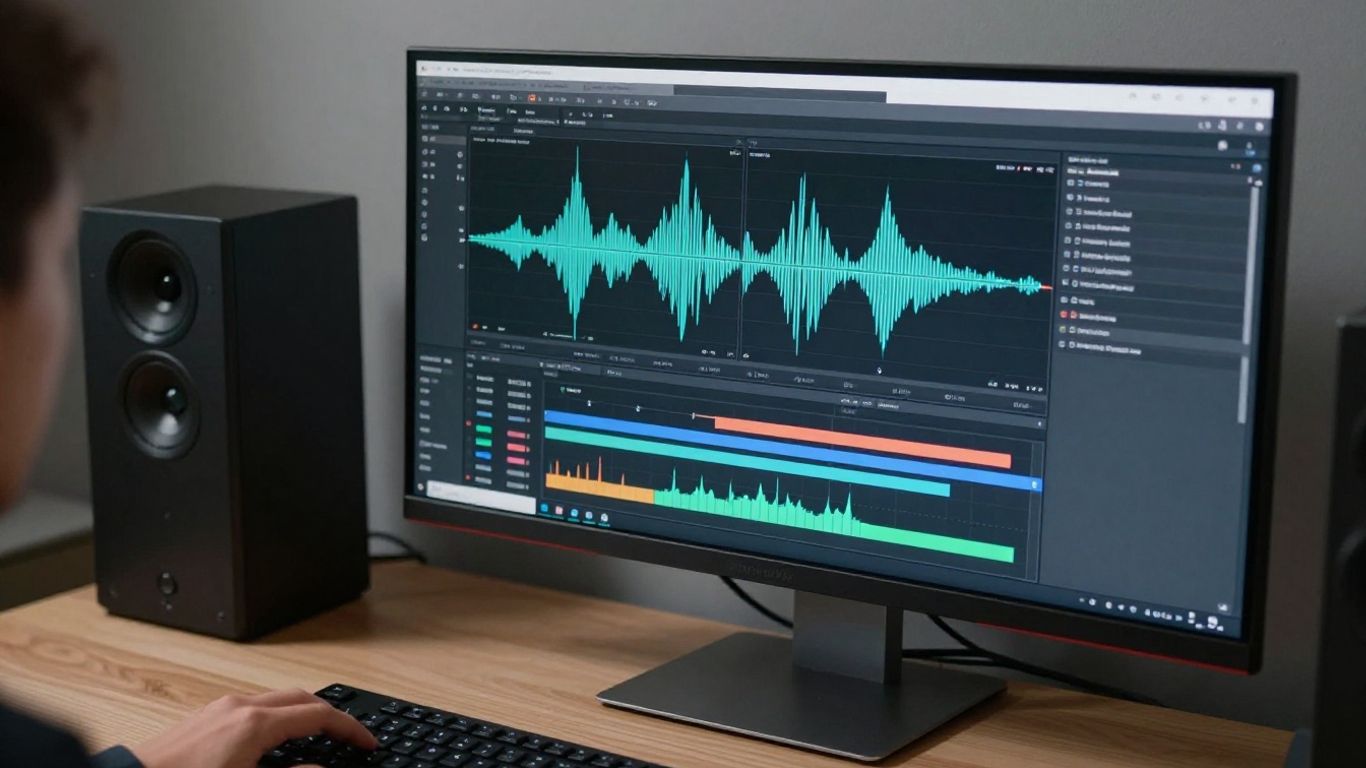
Setting up your local files correctly ensures the engine processes every peak effectively. You should double-check your upload settings to avoid compatibility issues.
The technical workflow for uploading local tracks
Follow these steps to ensure a smooth transition from your local drive to the cloud environment:
- Select your target directory for the source file.
- Verify that your file extension adheres to the supported list.
- Monitor the upload progress bar for completion signals.
- Confirm that the platform recognizes the detected tempo.
After these steps, your track sits in the queue, ready for the styling engine.
Automatic synchronization of visuals to your audio
Once the audio is analyzed, the platform automatically aligns visual transitions with the rhythm. You can trust the system to handle the heavy lifting of frame-perfect cuts. Creatus.AI simplifies this by managing the synchronization layer internally for every frame.
Identifying song peaks and drops for transitions
The software marks high-energy moments where a significant visual change adds impact. In the settings, you can define how dramatic these shifts should appear in the final video. A YouTube video explains these concepts better than text alone.
Troubleshooting common audio upload errors
Upload interruptions usually stem from heavy congestion or file corruption. Ensure your internet connection remains stable during the transfer process to maintain data integrity. Check your file size limits to avoid timeouts and confirm your Rotor Videos project settings handle your specific audio codec.
Selecting and customizing visual styles
Match your visual aesthetic to the specific vibe of your song to create a cohesive viewer experience. Style settings determine how the AI interprets color, motion, and lighting throughout the track.
Matching visual aesthetics to your song’s tone
Dark, moody tracks benefit from high-contrast visuals and slow transition speeds. Upbeat pop tracks should feature vibrant colors and fast-paced motion to mirror the energy of the melody. Your visual style acts as a partner to the music, not just a screensaver.
Leveraging realistic cinematic versus abstract visuals
Cinematic styles use realistic textures to create detailed narratives for storytelling. Abstract visuals rely on colors and shapes to evoke feelings without needing a traditional plot. Choose the visual approach that aligns with your goal, ensuring the Neural Frames approach to creative control keeps your output distinct.
Adjusting artistic parameters for dynamic output
Fine-tune settings like motion intensity and transition softness to achieve the final desired effect. Small adjustments to these parameters make a massive difference in how the video feels. Play with these toggles to discover the unique aesthetic that separates your work.
Using AI to maintain visual consistency throughout the video
Maintaining a unified visual thread prevents the video from feeling like a random collection of clips. Standardizing color palettes and character models helps keep the narrative flow smooth. This consistency fosters a professional quality that holds viewer attention from start to finish.
Exporting for social media and streaming platforms
Final files need to meet the specific technical standards of your destination platforms. Incorrect aspect ratios often result in unwanted cropping that ruins your hard work.
Optimizing videos for 9:16 aspect ratios for TikTok and Reels
Vertical format is mandatory for short-form content platforms to maximize screen real estate usage. Use the 9:16 export setting in your dashboard to ensure the subject is perfectly centered. Proper padding here prevents your text or key visual elements from getting cut off at the edges.
Resizing content for 1:1 Instagram feed posts
Square format works well for consistent feed engagement across professional portfolios. This aspect ratio looks natural while users scroll through their images. Ensure the visual framing works well within the square constraints to keep your key action centered.
Formatting high-resolution files for YouTube (16:9)
Horizontal 16:9 format is the standard for long-form video consumption and high-resolution playback. Set your output to 1080p or 4K to guarantee that your video looks professional on large displays. The wider canvas allows for a more cinematic shot composition.
Best practices for sharing AI-generated music videos
Share directly after processing to capitalize on current trends and peak engagement times. Use Plazmapunk features for multi-platform distribution and reach to ensure your work hits all your social channels simultaneously. Consistency in posting builds a presence that recognizes your creative volume.
Conclusion
Merging audio and visual production is now efficient because you have the right tools available at your fingertips. By following these steps and leveraging freebeat.ai principles for rhythm-based creation, you can produce content that stands out in a crowded market. Start small, iterate on your styles, and keep refining your process based on the results you see across different social channels.
Frequently Asked Questions
Can AI generate videos from instrumental tracks?
Yes, AI tools analyze the rhythmic and structural beats of an instrumental file just as effectively as those with vocals. You will find that the visualization engine focuses on the highs and lows of the instrumentation to trigger scene changes.
Does the system support long video files?
Most platforms set practical limits on duration to optimize rendering time and server resources. You might need to break a long track into separate sections and combine them later if your project exceeds standard time thresholds.
Can I change visual styles mid-video?
Some platforms allow you to script or segment your song to apply different styles to specific time intervals. This helps you build a narrative journey that shifts aesthetic moods as the music evolves.
Is the output automatically licensed for commercial use?
The licensing terms vary based on the platform you choose and your specific subscription level. Always review the terms of service to understand if your generated content is cleared for commercial release or Monetization.
What if the beat detection feels incorrect?
Manually adjust the sensitivity in the platform settings if the visual transitions do not align perfectly with the audio pulses. Some advanced tools let you manually define the drop points to override the automated analysis.
Do I need high-end hardware to render videos?
Most modern AI generators use cloud-based rendering, which shifts the heavy lifting away from your local computer. This allows you to generate high-resolution media even if you are working on a standard laptop or tablet.
How does changing the aspect ratio affect quality?
Changing the aspect ratio re-crops your footage to fit the new frame, which can sometimes impact the composition. Always check your preview window after switching ratios to ensure your primary focal points remain clearly positioned within the frame.
Create Music Videos Instantly
Click here get started now and begin producing your unique content today. Our latest tools help you turn ideas into reality without complex editing barriers.